
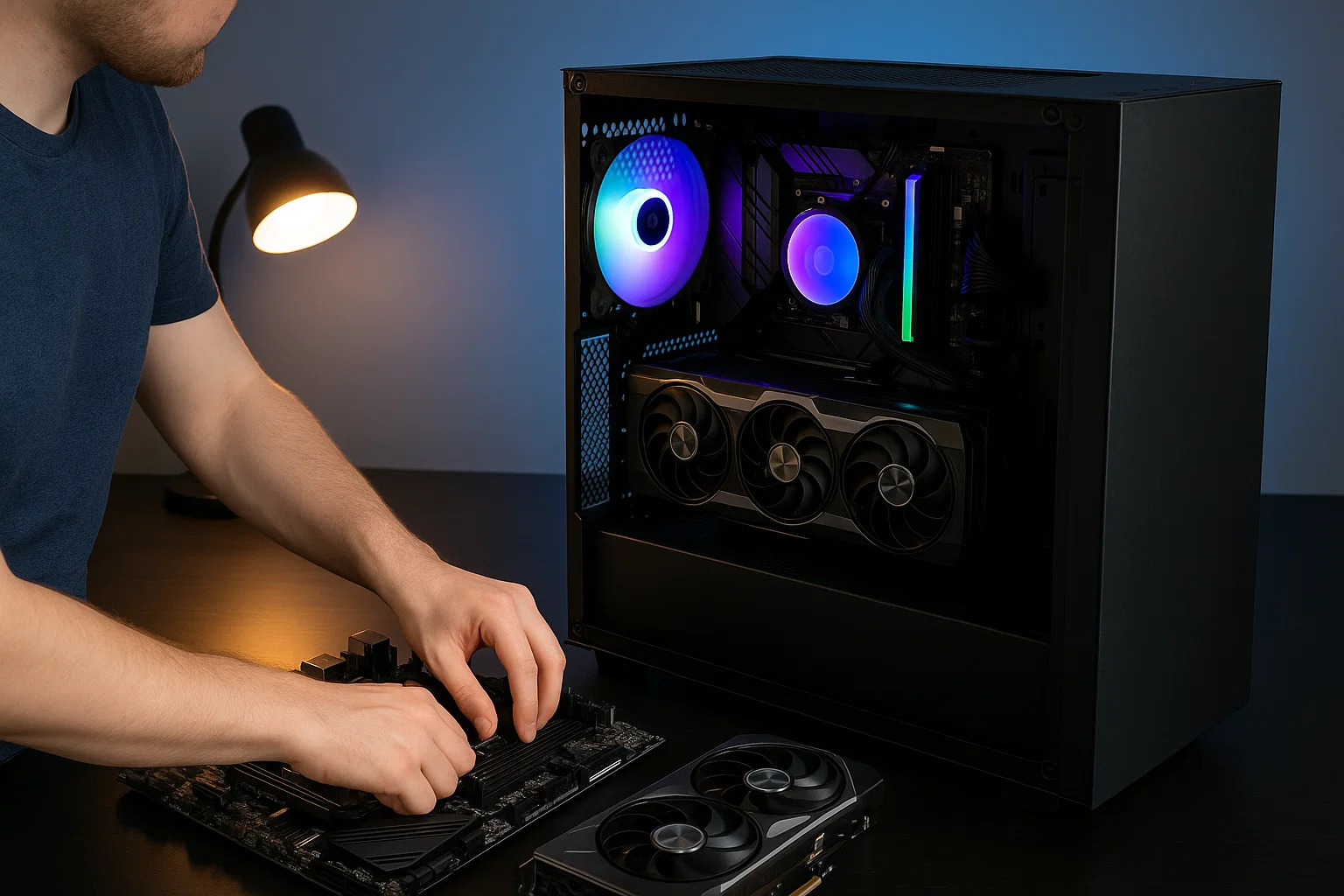
But where do you start? With hundreds of parts, compatibility charts, and new GPU generations launching every few months, the process can look intimidating. Don’t worry. This guide breaks down every step in plain English no jargon, no stress. By the end, you’ll know exactly how to build a custom PC that fits your goals and budget.
Why Building a Custom PC Matters in 2026
Let’s be honest: prebuilt PCs are convenient, but they rarely give you full value. You pay for brand packaging, markup, and sometimes outdated parts. A custom PC, on the other hand, gives you freedom you choose every component, balance performance and cost, and avoid bloatware.
The 2026 Context
According to Statista, global PC shipments rebounded to 265 million units in 2026, driven by gamers, students, and professionals seeking high-performance systems. Cloud gaming and AI-assisted content creation are major factors. That means building a powerful yet efficient desktop is more relevant than ever.
Here’s why it makes sense:
| Reason | Benefit | Example |
|---|---|---|
| Cost Efficiency | You avoid prebuilt markups | A $1000 DIY PC equals a $1500 prebuilt in performance |
| Customization | Choose parts for your exact needs | Content creators can prioritize CPU cores over RGB |
| Upgradability | Replace any single part anytime | Swap GPU for newer gen without rebuilding everything |
| Learning Experience | You understand your hardware | Great for students and IT learners |
Real-world case: A small business owner in Mumbai built a $900 workstation for design tasks that outperformed prebuilt systems costing $1300. That’s what smart customization can do.
Understanding the Core Components
Think of your PC like a human body each part has a role, and everything must work together.
| Component | Function | Impact |
|---|---|---|
| CPU (Processor) | The “brain” handles all instructions | Higher core count = faster multitasking |
| GPU (Graphics Card) | Renders visuals for games, design, and AI | Critical for gamers and creators |
| Motherboard | The central board connecting all components | Determines compatibility and features |
| RAM (Memory) | Short-term memory for active tasks | More RAM = smoother multitasking |
| Storage (SSD/HDD) | Long-term storage for OS, games, and files | SSDs offer faster boot and load times |
| Power Supply Unit (PSU) | Feeds power to all components | Determines reliability and efficiency |
| Case | Houses all parts, provides cooling and aesthetics | Impacts airflow and noise levels |
| Cooling System | Prevents overheating | Air or liquid cooling options available |
💡 Priya’s Tip: Always start with your purpose. If you’re gaming, prioritize GPU. For content creation, invest more in CPU and RAM. For daily use, balance both.
Step-by-Step Guide to Building Your PC
Ready to start? Grab your components, clear your desk, and let’s build.
Step 1 – Choose the Right Budget
The most common question: How much does a custom-built PC usually cost?
Here’s a simple breakdown for 2026:
| Budget | Use Case | Example Specs | Estimated FPS (Gaming) |
|---|---|---|---|
| $700 Build | Entry-level 1080p gaming | Ryzen 5 5600G, RTX 3050 | 60–90 FPS |
| $1000 Build | Mid-range gaming & editing | Intel i5-13600K, RTX 4060 | 100–144 FPS |
| $2000 Build | High-end gaming & streaming | Ryzen 9 7900X, RTX 4070 Ti | 144–200+ FPS |
💬 Is $1000 a lot for a gaming PC?
Not anymore. It’s actually the sweet spot enough for 1440p gaming, fast SSDs, and great cooling.
Step 2 – Select Compatible Parts
This is where planning matters most. A mismatch in sockets or power can ruin your day.
CPU & Motherboard
- AMD uses AM5 sockets; Intel uses LGA1700 (for now).
- Match chipset and generation (e.g., Intel Z790 for 13th/14th gen).
GPU
- Choose based on your display resolution and target FPS.
- Example: RTX 4060 = perfect for 1440p, RTX 4090 = overkill for 1080p.
RAM
- Minimum 16 GB DDR5 recommended in 2026.
- Dual-channel setup (2×8 GB or 2×16 GB) for best performance.
Storage
- NVMe SSDs now cost under $50 for 512 GB no reason to use HDDs for the OS.
Power Supply (PSU)
- Use online calculators (e.g., Cooler Master PSU calculator).
- Always buy 80+ Bronze or higher efficiency certified units.
💡 Pro Tip: Visit PCPartPicker.com to check compatibility automatically it warns you about power issues or incompatible parts.
Step 3 – Assemble the Components
Now the fun part: building it.
Prepare the Workspace
- Ground yourself to avoid static.
- Use a large, flat surface with good lighting.
- Keep screws and tools organized.
Install the CPU
- Open the CPU socket on your motherboard.
- Align the triangle marker.
- Gently place the CPU and lock it in.
- Apply a pea-sized thermal paste before mounting the cooler.
Install the RAM
- Open RAM slots and click modules into place.
- Make sure you use alternating slots (A2, B2).
Mount the Motherboard
- Screw standoffs into the case first.
- Align the motherboard I/O shield.
Install the PSU
- Mount it at the bottom (fan down if vented).
- Route main cables through the back for cleaner airflow.
Insert Storage Drives
- Use M.2 slots for NVMe SSDs.
- SATA cables for secondary drives.
Add GPU
- Insert into top PCIe slot.
- Secure with screws and connect power cables (8-pin/12-pin).
💡 Cable Management: Tuck cables behind the motherboard tray. Better airflow = cooler temperatures.
Step 4 – Power On and Install OS
Time for the moment of truth.
- Connect your monitor, keyboard, and mouse.
- Press power fans should spin!
- Enter BIOS (press DEL or F2).
- Check system detects CPU, RAM, and storage.
- Boot from a USB drive to install Windows 11 or Linux.
🧩 Security Tip: Update BIOS to the latest version after installation. This fixes bugs and improves performance.
How to Balance Cost and Performance
Every builder asks: What’s the best value for my money?
Let’s compare:
| Build Type | CPU | GPU | Price | Avg FPS (1080p) |
|---|---|---|---|---|
| Budget | Ryzen 5 5500 | RTX 3050 | $700 | 75 |
| Midrange | i5-13600K | RTX 4060 | $1000 | 140 |
| High-end | Ryzen 9 7900X | RTX 4070 Ti | $2000 | 200+ |
💡 How many FPS can a $700 PC run?
Around 60–90 FPS in most modern games at 1080p smooth enough for casual players.
Remember, balance is key. Overspending on GPU but skipping on PSU or cooling can bottleneck performance.
Tools and Software for PC Builders
Here are some modern helpers to make life easier:
| Tool | Purpose |
|---|---|
| PCPartPicker | Checks compatibility and pricing |
| HWMonitor / CPU-Z | Monitors system temperature and hardware info |
| MSI Afterburner | GPU overclocking and FPS monitoring |
| CrystalDiskMark | Storage speed testing |
| NZXT Build Configurator | Visualizes cases and components |
🧰 Testing Apps:
Once built, run Cinebench for CPU, 3DMark for GPU, and MemTest for RAM stability.
Troubleshooting Common Issues
Building PCs is fun until it doesn’t boot. Don’t panic.
| Issue | Possible Cause | Fix |
|---|---|---|
| No Power | Loose cable or PSU switch off | Check 24-pin and CPU power cables |
| No Display | GPU not seated properly | Reseat GPU, check monitor input |
| Beeping Sounds | Memory issue | Reinsert RAM, check slots |
| Overheating | Bad cooler contact | Reapply thermal paste |
| Fan Noise | Cable touching blade | Re-route cables |
💡 Priya’s Advice: Every beep, blink, or fan whir tells a story the motherboard is trying to communicate what’s wrong.
Expert Tips for a Smooth Build
- Plan Cable Paths: Route cables before tightening zip ties.
- Test Before Closing Case: Boot the system before sealing it.
- Label Screws: Different screws for PSU, motherboard, and fans.
- Check Airflow: Front = intake, back/top = exhaust.
- Avoid Static Damage: Use anti-static wrist strap if possible.
💬 Example: A YouTuber, “JayzTwoCents,” tested airflow direction proper fan orientation dropped GPU temps by 8°C.
Advanced Optimization
Once your PC is running, it’s time to fine-tune.
Overclocking Basics
- Slightly raise CPU clock speed in BIOS.
- Monitor temps using HWMonitor.
- If stable, keep if not, reset to default.
⚠️ Warning: Don’t push beyond 10% without advanced cooling.
Firmware & BIOS Updates
Manufacturers often release performance updates. Check your motherboard’s official website every 3–6 months.
Future-Proofing
- Leave one RAM slot and PCIe slot free.
- Choose 750W PSU minimum for future GPU upgrades.
- Keep your case modular for easy expansion.
Real-World Examples and Expert Insights
“Building your PC gives you ownership not just over hardware, but over your digital life,” says Lisa Su, CEO of AMD.
“It’s about performance freedom.”
Let’s look at two real cases:
- Student Build (India, 2026):
- Budget: $800
- Ryzen 5 5600G + RTX 3050
- Goal: School + Gaming
- Result: 90 FPS average and smooth multitasking.
- Creator Build (UK, 2026):
- Budget: $1500
- Intel i7-13700K + RTX 4070
- Goal: Video editing and 4K rendering
- Result: Render time dropped 50% compared to old laptop.
Practical Checklist Before Powering On
Before pressing the power button, run through this final list:
✅ CPU installed and cooler attached
✅ RAM seated properly (A2/B2 slots)
✅ GPU locked in PCIe slot
✅ PSU switch ON
✅ Front panel connectors attached
✅ SSD visible in BIOS
✅ OS installation USB ready
✅ All fans spinning
✅ Cable ties trimmed
Optional: Take a photo of your cable layout it’ll help during future upgrades.
Final Thoughts Before You Try It Yourself
Building a custom PC is more than assembling parts it’s about confidence, patience, and learning. Your first boot might not be perfect, and that’s okay. Every builder makes mistakes, even professionals.
When you press that power button and see your creation light up, you’ll feel a rush that no prebuilt box can match. You’ll know every part, every screw, every light because you built it.
Now that you’ve read this guide, it’s time to plan your build. Start small, stay curious, and remember: the best PC isn’t the most expensive one it’s the one that fits you perfectly.

IT consultant and educator specializing in wireless networks and cloud systems. With a strong academic background and real-world projects, Priya brings practical expertise and trustworthy advice for students, professionals, and everyday tech users.