
A document management system should do more than give employees a place to save files. It should help people find the right document, control who can open or edit it, track changes, manage approvals, and keep important records for as long as the business needs them.
That need has become more important as digital work grows. Microsoft’s 2025 Work Trend Index found that employees using Microsoft 365 can be interrupted every two minutes during core working hours by meetings, emails, or chats. Another Microsoft study found that 62% of surveyed workers spent too much time searching for information during the workday. Poor document organization adds to that pressure because employees waste time looking for files, checking whether a version is current, or asking colleagues where something was saved.
A document management system SharePoint setup can solve many of these problems. SharePoint combines document libraries, metadata, search, permissions, version history, collaboration, automation, and information-governance features. Organizations already using Microsoft 365 can also connect SharePoint with Teams, OneDrive, Power Automate, Microsoft Purview, and other Microsoft services.
Here’s what matters: SharePoint does not become a good document management system simply because you upload thousands of files into it. The real value comes from designing how documents are classified, accessed, reviewed, searched, updated, and eventually archived or deleted.
This guide explains how to build that structure without turning SharePoint into another confusing network drive.
What Is a SharePoint Document Management System?
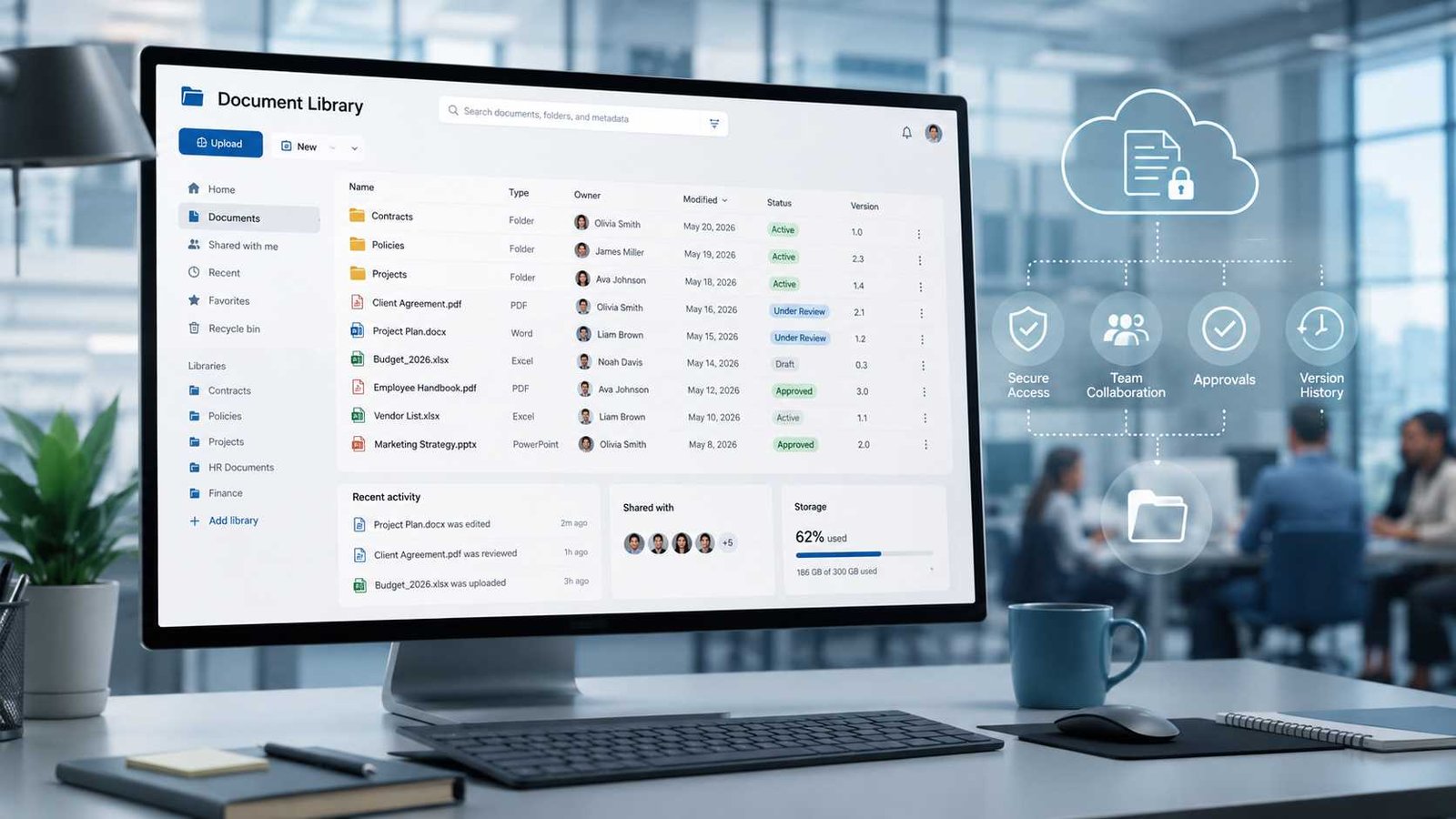
A SharePoint document management system is a structured environment that uses Microsoft SharePoint to store, organize, search, share, secure, track, and manage business documents throughout their useful life.
The core building block is the document library. A library may contain Word documents, Excel workbooks, PDFs, presentations, images, contracts, procedures, reports, and other files. Unlike a basic folder on a computer or network drive, a SharePoint library can attach additional information to each document.
For example, imagine a company with 3,000 customer contracts. A traditional folder structure might look like this:
Customers / 2026 / North Region / Customer A / Contracts
That works until people forget where a contract was placed.
In SharePoint, the organization can add metadata such as customer name, contract owner, department, status, renewal date, and document type. Employees can then filter or search using those details rather than navigating through several folders.
Microsoft explains that metadata stored in SharePoint columns can be indexed and searched. More recent Microsoft 365 document-processing features also support metadata-based content queries for supported libraries and licensing scenarios.
That difference is important. A basic file store answers the question, Where did we save the document?
A well-designed SharePoint document management system answers a better question: Which document do I need right now?
Can SharePoint Be a Document Management System?
Yes. SharePoint can function as a document management system when an organization properly configures document libraries, metadata, content types, permissions, version control, search, approval processes, and governance policies.
SharePoint is especially useful for organizations already working with Microsoft 365 because employees can collaborate on Office documents and connect document libraries with other Microsoft tools.
However, SharePoint is not automatically a complete DMS the moment a site is created. Organizations still need to design how documents will be classified, secured, reviewed, retained, and maintained.
What Is SharePoint Used For?
SharePoint serves several purposes beyond document storage. Organizations use it for document management, internal websites, employee portals, team collaboration, knowledge bases, policies, procedures, project information, forms, business processes, and controlled file sharing.
That flexibility is one reason SharePoint can support both a five-person department and a much larger enterprise environment.
Why Businesses Use SharePoint for Document Management
Document problems usually appear slowly. An employee creates a report and emails it to three colleagues. One colleague edits it. Another downloads a copy and makes different changes. A manager saves another copy to a shared folder. Soon the company has files named Report Final, Report Final 2, and Report Final Updated.
This is not only untidy. It creates business risk.
Employees may send an old quotation to a customer, use an outdated procedure, approve the wrong contract, or accidentally share confidential information. When staff leave, documents may become difficult to locate because only one person understood the folder structure.
SharePoint addresses these problems by creating a controlled location where documents can have defined owners, access permissions, searchable properties, version histories, and workflow states.
Version history is particularly useful. Microsoft says versioning is enabled by default for new Microsoft 365 libraries and lists, with the service automatically saving the last 500 versions under the current default behavior. Administrators can configure versioning depending on business requirements. Earlier versions can be viewed and restored when needed.
Here is a simple view of common document-management problems:
| Problem | Common Cause | Business Impact |
|---|---|---|
| Duplicate documents | Files copied to many locations | Staff may use outdated information |
| Difficult search | Weak naming and classification | Employees waste time |
| Unauthorized access | Permissions are too broad | Confidential information may be exposed |
| Lost changes | No useful version history | Work may need to be recreated |
| Slow approvals | Reviews happen through email | Projects and decisions are delayed |
| Old content remains active | No lifecycle rules | Staff may rely on obsolete information |
| Important records disappear | Weak retention controls | Compliance and legal problems may follow |
The goal is not simply to create more SharePoint libraries. The goal is to create a document environment people can understand and trust.
Core Components of a SharePoint Document Management System
Several SharePoint features work together to create an effective DMS. Understanding each one before building the site prevents expensive redesign later.
Document Libraries
A document library is the main location where SharePoint stores managed documents. You can create different libraries for different business purposes, such as contracts, policies, customer records, finance documents, technical manuals, or project files.
Do not create a new library for every small category. Too many libraries can make navigation difficult. Instead, divide content where there is a meaningful difference in ownership, permissions, lifecycle, or business process.
Metadata and Columns
Metadata describes a document.
A contract might include:
- Customer
- Contract type
- Department
- Contract owner
- Status
- Effective date
- Expiration date
This data appears in SharePoint columns and allows users to sort, filter, group, and search documents more intelligently.
Microsoft explains that SharePoint search can index site columns and their values, allowing those properties to contribute to search results.
Content Types
A content type defines what kind of document something is and which properties belong to it.
For example, a company might create separate content types for Contract, Policy, Invoice, and Project Report.
A contract could require Client, Owner, Expiration Date, and Contract Status. A policy might require Policy Owner, Department, Review Date, and Approval Status.
This creates consistency across libraries and sites.
Version History
Versioning lets SharePoint record changes made to a document over time. Users with suitable permissions can review or restore earlier versions.
Microsoft specifically recommends using versioning when people collaborate because it provides a recovery point if someone makes an incorrect change.
It also ends one of the oldest office problems:
proposal-final-final-v3-approved-new.docx
Permissions
Permissions decide who can view, edit, manage, or share information.
Good document management usually applies permissions according to job responsibilities rather than giving everyone access to everything.
Views
Views present the same library in different ways.
A contracts library could offer:
Active Contracts
Contracts Expiring This Month
Contracts Awaiting Approval
My Contracts
The documents do not need to move. Each view simply filters, groups, or sorts the library differently. Microsoft supports configurable library views, and current SharePoint capabilities can also use metadata in advanced view and document-processing scenarios.
How to Use SharePoint for Document Management
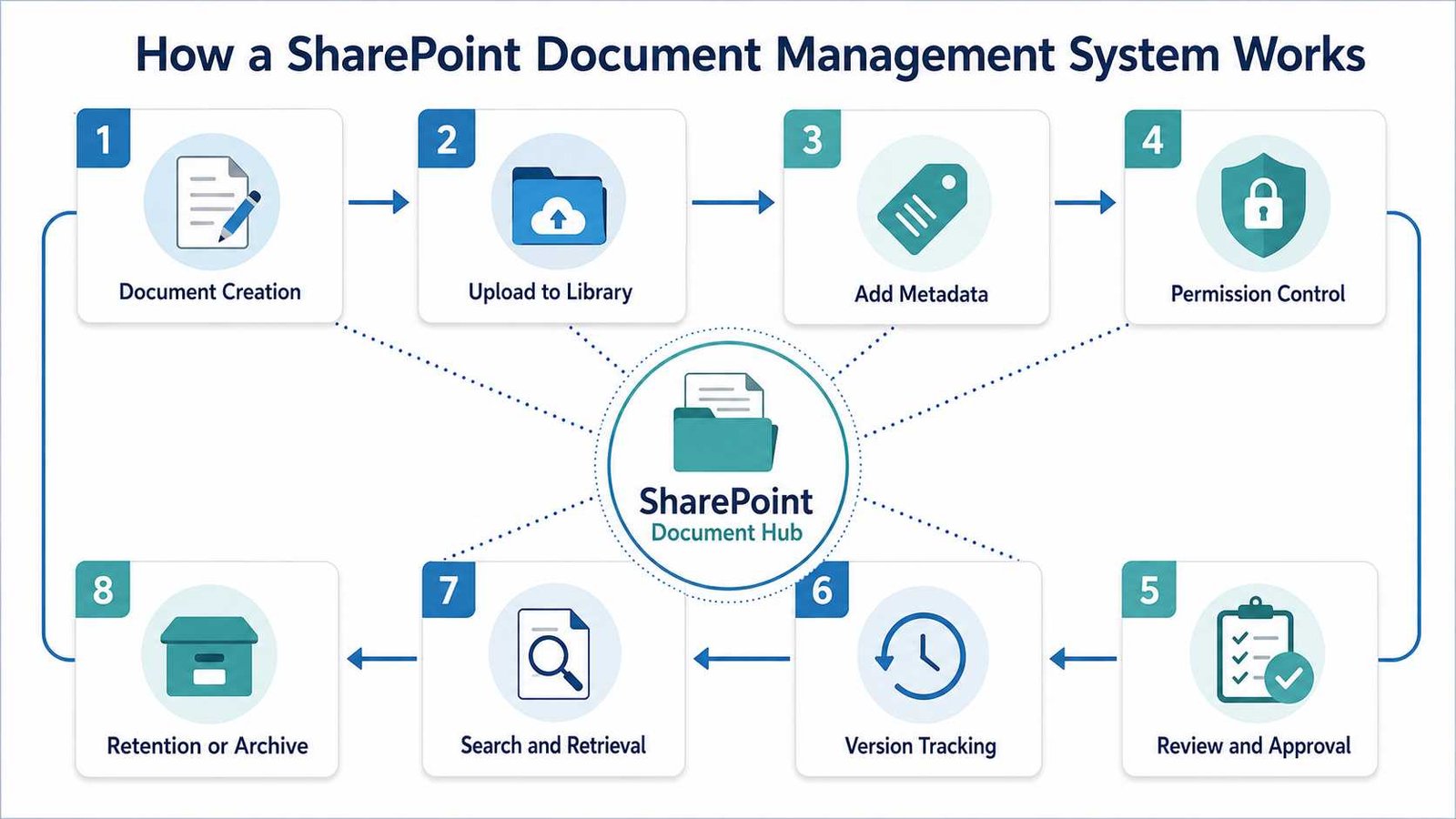
The best SharePoint implementations begin with business requirements, not with uploading files.
Step 1: Identify Your Document Types
Start by listing the important documents your organization creates.
A small business might have contracts, invoices, quotations, procedures, employee forms, marketing files, and project reports.
Next, identify who creates each document, who reviews it, who needs access, and how long the organization needs to keep it.
Step 2: Create the SharePoint Site
Create a site for the department, project, business unit, or function that will manage the information.
Keep the architecture simple. Employees should understand where documents belong without needing a technical diagram.
Step 3: Create the Required Libraries
Now create libraries around meaningful business functions.
For example:
Contracts Library
Policies Library
Projects Library
Avoid creating hundreds of small libraries unless security or business rules justify that design.
Step 4: Add Useful Metadata
Think about how people search.
If someone needs a contract, they may remember the customer, owner, year, status, or expiration date. Those values make good metadata.
Do not add 20 required fields simply because SharePoint allows it. Employees will resist a system that takes longer to classify a document than to create it.
Step 5: Configure Content Types
Create reusable content types when different document classes need different properties or processes.
This keeps classification consistent as the environment grows.
Step 6: Set Permissions
Give users only the access needed for their jobs.
NIST’s zero-trust guidance recommends protecting individual resources and granting only the minimum privileges required to perform assigned tasks. That principle applies well to document management: the finance department does not need to expose payroll documents to every employee simply because everyone belongs to the same Microsoft 365 tenant.
Step 7: Configure Versioning
Check the library’s versioning settings and decide whether the default configuration matches the business need.
Versioning can help recover accidental edits and provide an audit trail of document changes.
Step 8: Build Useful Views
Create views based on actual questions employees ask.
Examples include documents needing review, files owned by the current user, policies updated this year, or contracts approaching renewal.
Step 9: Add Approval Workflows
Power Automate can connect a SharePoint library to an approval process.
A basic process might work like this:
Document submitted, manager reviews it, decision is recorded, document status changes, approved version becomes available.
Microsoft documents this type of process using SharePoint content approval and Power Automate. A flow can start when a file enters a library, identify the file, request approval, and update its approval status.
Step 10: Test With Real Employees
Do not test only as an administrator.
Ask a normal employee to find a customer contract, identify its current version, check its owner, and determine whether it needs approval.
If that takes ten minutes and several phone calls, the structure needs improvement.
How Do I Install SharePoint?
This question causes confusion because SharePoint Online and SharePoint Server work differently.
SharePoint Online
Most organizations using SharePoint through Microsoft 365 do not install SharePoint software on employee computers or run a SharePoint server themselves.
Microsoft hosts SharePoint Online as a cloud service. Administrators configure sites, libraries, access, sharing, and related settings within the Microsoft 365 environment.
Employees then access SharePoint through a browser, Microsoft Teams, Office applications, OneDrive synchronization, or other supported Microsoft 365 experiences.
For most small businesses, this is the easier path because Microsoft manages the underlying SharePoint cloud infrastructure.
SharePoint Server Subscription Edition
Organizations with specific on-premises requirements can use SharePoint Server Subscription Edition.
This is a real server deployment and requires significantly more technical work. Microsoft’s current guidance includes preparing the required accounts and software prerequisites, installing SharePoint Server, running the SharePoint Products Configuration Wizard, configuring databases and services, and then setting up the farm and site environment.
Microsoft also states that SharePoint Server Subscription Edition no longer automatically installs SQL Server Express for a single-server installation. SQL Server must be provided separately, either on the same server or another supported server. Microsoft recommends a separate SQL Server for better performance in applicable environments.
| Area | SharePoint Online | SharePoint Server |
|---|---|---|
| Hosting | Microsoft cloud | Organization-managed infrastructure |
| Local SharePoint installation | No | Yes |
| Server maintenance | Microsoft manages platform | Internal IT manages it |
| Updates | Cloud service model | Administrator-controlled deployment |
| Infrastructure skills needed | Lower | Higher |
| Typical fit | Microsoft 365 organizations | Specialized on-premises requirements |
For a small business asking how to install SharePoint simply to manage documents, SharePoint Online will usually be the more practical place to start.
Real-World SharePoint Document Management Examples
Consider a 40-person consulting company that manages hundreds of customer agreements. Previously, employees stored contracts in department folders. Some agreements existed in five different locations.
The company creates one controlled contracts library instead. Each file receives Customer, Account Manager, Contract Type, Effective Date, Expiry Date, and Status metadata.
A manager can now open a view called Contracts Expiring in 60 Days rather than searching dozens of folders. A Power Automate flow can notify the responsible employee when action is required.
A second example involves HR policies. Instead of emailing updated PDF files to every employee, HR maintains the controlled source document in SharePoint. Editors have permission to update it, while employees receive read access to the approved content. Version history provides a record of changes.
The same model works for students and project teams. A research group can keep source material, reports, spreadsheets, and presentations in a shared library while using version history and collaborative editing to prevent members from creating disconnected copies.
The technology stays the same. What changes is the information architecture.
That is why a five-person team can use a simple SharePoint document-management structure while an enterprise may build extensive content types, approval processes, retention rules, search experiences, and records-management controls around the same platform.
SharePoint Permissions and Document Security
Security deserves attention before employees start uploading sensitive documents.
A common mistake is to build a complicated system of permissions for individual people and files. It works at first, but six months later nobody remembers why one employee can open a folder while another cannot.
Use role-based groups where possible.
For example, a contracts environment might have Contract Owners, Contract Editors, Contract Readers, and Administrators. Access can then follow job responsibilities rather than individual exceptions.
This approach also supports the least-privilege principle described in NIST guidance: users should receive only the access necessary for their work, and organizations should periodically review privileges to ensure they remain justified.
External sharing requires similar discipline. A company may need to share project documents with customers or contractors, but that does not mean external guests need access to an entire internal library.
Administrators should also distinguish everyday permissions from information lifecycle controls. Microsoft Purview provides retention policies and retention labels for Microsoft 365 content. A retention policy can apply broadly to a SharePoint location, while retention labels can apply different rules to individual documents and can support additional records-management scenarios. Microsoft updated its retention documentation in July 2026, so organizations should check current licensing and configuration requirements before deployment.
Version Control, Check-Out, and Co-Authoring
SharePoint gives administrators several ways to control document editing, but more control is not always better.
For most normal Office collaboration, versioning and co-authoring work well together. Multiple authorized users can edit supported documents while SharePoint keeps versions that can later be reviewed or restored.
Required check-out works differently.
When a document is checked out, one person controls editing until the file is checked back in. That can be useful for specific controlled-document processes, but Microsoft warns that requiring check-out prevents people from co-authoring the document.
This matters because administrators sometimes enable every available control because it appears safer.
The result can be a library that employees hate using.
Use required checkout only when the business process genuinely demands exclusive editing.
For normal reports, presentations, plans, and collaborative documents, versioning plus sensible permissions usually provides a smoother experience.
An effective DMS balances control with usability. If users constantly download SharePoint documents to their desktops because the official workflow is too difficult, the technical controls are no longer solving the real problem.
Automating Document Approval With Power Automate
Approval automation is one of the strongest reasons to move beyond ordinary folders.
Imagine an employee uploads a new operating procedure. The document should not become the official procedure until the department head reviews it.
A SharePoint and Power Automate process can detect the submission, send an approval request, record the decision, and update the document’s status.
Microsoft’s guidance for SharePoint content approval shows how Power Automate can trigger when a new file is added, obtain file metadata, send the approval request, and then set the content approval status based on the decision.
Businesses can extend the idea to other processes.
A contract can trigger a reminder before expiry. A policy can require annual review. A document can notify its owner when required information is missing. A purchasing document can move through several approval levels.
Avoid automating every possible action on day one.
Start with one business process that already creates delays. Measure whether the workflow reduces emails, mistakes, and follow-up calls. Then expand.
Automation should remove unnecessary work, not hide a confusing process inside a flow.
SharePoint Document Management Best Practices
A successful SharePoint document management system depends more on planning than on advanced configuration.
First, design the information model before migration. Moving 100,000 poorly organized files from a network drive into SharePoint does not make them organized. It simply moves the problem.
Second, use metadata where it genuinely improves finding and managing content. Folders can still be useful, especially when they match the way people naturally work. The mistake is building deeply nested folders as the only way to classify information.
Third, assign document ownership. Every important library, document category, and approval process should have someone responsible for keeping it accurate.
Fourth, keep permissions understandable. Security structures that require a spreadsheet to explain them often become difficult to maintain.
Fifth, test search. Metadata matters only if employees can actually use it to locate information.
Sixth, manage the document lifecycle. Some files need to remain active for months. Others may need multi-year retention. Some should eventually be deleted. Microsoft Purview can support retention and records-management scenarios, but the organization must first determine its legal, regulatory, and operational requirements.
Finally, train people using real tasks. Do not teach SharePoint by explaining every button. Ask employees to upload a contract, classify it, locate another customer’s contract, restore an earlier version, and submit a file for approval.
Those are the skills they will actually use.
Common SharePoint Document Management Mistakes
One of the biggest mistakes is recreating an old file server exactly inside SharePoint.
If the original structure had eight levels of folders, duplicate documents, inconsistent names, and unclear ownership, copying it unchanged preserves every weakness.
Another mistake is adding too much metadata. Metadata improves search, but forcing users to complete fifteen fields for every upload creates friction. Make fields required only when the organization genuinely needs the information.
Permissions also become a problem when administrators break inheritance for dozens of individual files and folders. Specific exceptions are sometimes necessary, but widespread exceptions become difficult to understand and audit.
Do not create separate sites or libraries simply because two document types have different names. Separate them when there is a reason such as permissions, ownership, lifecycle, navigation, or process.
Required check-out is another common example of unnecessary control. Microsoft specifically notes that users cannot co-author documents when required checkout is enabled.
Finally, do not assume SharePoint replaces governance. The platform can provide versioning, permissions, metadata, approval, retention, and search capabilities. It cannot decide which employee should own a contract, how long financial records must legally remain, or which information a contractor should see.
Those are business decisions.
Advanced SharePoint Document Management
Once the basic DMS works, organizations can add more advanced capabilities.
Managed metadata can create standardized terms across sites. Content types can provide reusable structures for different documents. Power Automate can handle notifications and approvals. Purview retention labels can apply item-level retention requirements and can also mark supported content as records in appropriate configurations.
Modern document-processing features can also make metadata more useful. Microsoft currently provides content-query capabilities that can search supported metadata fields such as dates, people, file types, keywords, content types, and custom columns in eligible scenarios. Some of these capabilities require specific licensing, so administrators should confirm current Microsoft 365 requirements rather than assuming every feature appears in every plan.
SharePoint is also becoming more AI-assisted. Microsoft documented new SharePoint capabilities in June 2026 that allow Copilot to help create library views using natural-language instructions. Supported actions include showing or hiding columns, sorting, filtering, and grouping, although Microsoft also lists current limitations.
These tools can reduce administrative work, but the same rule still applies: AI cannot rescue an information architecture that nobody understands.
Design the document model first. Automate it second.
SharePoint vs Other Document Storage Options
SharePoint is not the only way to store business files, and it is not automatically the best choice for every team.
| Capability | SharePoint | Google Drive | Dropbox Business | Traditional File Server |
|---|---|---|---|---|
| Cloud collaboration | Strong | Strong | Strong | Usually limited |
| Structured metadata | Strong | More basic for typical use | More basic for typical use | Usually manual |
| Version history | Yes | Yes | Yes | Depends on setup |
| Detailed Microsoft 365 integration | Strong | Limited | Limited | Limited |
| Workflow automation | Strong with Microsoft ecosystem | Available through Google ecosystem/tools | Integrations available | Usually custom |
| On-premises option | SharePoint Server available | No equivalent standard deployment | Primarily cloud | Yes |
| Administration complexity | Medium to high | Lower for basic use | Lower for basic use | Varies |
| Best fit | Structured Microsoft 365 document processes | Google Workspace collaboration | Straightforward cloud file sharing | Specialized legacy/local requirements |
A startup that only needs a shared location for ten employees may not need a complex SharePoint architecture.
A company already using Microsoft 365 that needs document ownership, metadata, approvals, retention controls, and department-level permissions has a stronger reason to consider SharePoint.
The correct question is therefore not, Is SharePoint better than every other file platform?
Ask instead, Does SharePoint match the way our organization needs to control information?
Is SharePoint a Good Document Management System for Small Businesses?
Yes, but only when the business needs more than basic cloud storage.
A small company already paying for an appropriate Microsoft 365 plan may gain considerable value from using SharePoint for contracts, operating procedures, customer documents, policies, projects, and controlled internal information.
The strongest case appears when employees already use Outlook, Word, Excel, Teams, and OneDrive. SharePoint can become the shared information layer underneath many of those workflows.
However, a four-person company that only wants to share twenty files does not need an enterprise-style architecture with dozens of content types and automated retention policies.
Start according to the size of the problem.
A small SharePoint DMS might need one site, three libraries, six metadata fields, four permission groups, version history, and one approval workflow.
That can be enough.
Good architecture is not measured by how many SharePoint features you enable. It is measured by how easily employees can find the correct information and complete their work without creating unnecessary risk.
Practical SharePoint Document Management Checklist
Use this checklist before launching a new environment:
- Identify the document types the organization needs to manage.
- Assign an owner to each important document category.
- Decide which documents belong in separate libraries.
- Define useful metadata fields.
- Create reusable content types where appropriate.
- Configure access using clear user groups.
- Review external-sharing requirements.
- Check versioning settings.
- Decide whether check-out is genuinely necessary.
- Create useful filtered and grouped views.
- Configure required approval processes.
- Identify retention and deletion requirements.
- Test SharePoint search using real documents.
- Test restoration of an earlier version.
- Test the system using a normal employee account.
- Train users with real tasks.
- Review permissions and document ownership regularly.
Frequently Asked Questions
Can SharePoint Be a Document Management System?
Yes. SharePoint can manage business documents using libraries, metadata, search, permissions, version history, collaboration, approval workflows, and governance features. The quality of the system depends on how well the organization designs its document structure and business rules.
How to Use SharePoint for Document Management?
Start by identifying document types and owners. Create suitable libraries, add metadata, configure content types and permissions, enable appropriate versioning, build useful views, and automate approvals where needed. Test the structure with real users before migrating large numbers of files.
How Do I Install SharePoint?
SharePoint Online generally does not require your organization to install SharePoint servers because Microsoft hosts the service through Microsoft 365. SharePoint Server Subscription Edition is an on-premises product that requires supported server infrastructure, prerequisites, databases, installation, and farm configuration.
What Is SharePoint Used For?
Organizations use SharePoint for document management, collaboration, intranets, knowledge sharing, team sites, policies, project information, business processes, controlled file access, and integration with other Microsoft 365 services.
Is SharePoint a DMS or CMS?
SharePoint can perform functions associated with both document management and content management. For business documents, its libraries, metadata, permissions, versions, search, automation, and governance capabilities allow organizations to use it as a DMS.
Is SharePoint Better Than a Shared Drive?
SharePoint provides capabilities that a basic shared drive often lacks, including structured metadata, configurable views, web collaboration, Microsoft 365 integration, version history, workflow automation, and more detailed information-management options. A shared drive may still be sufficient when requirements are simple.
Does SharePoint Have Version Control?
Yes. SharePoint libraries support version history, allowing users with appropriate access to see earlier versions and restore a previous version when necessary. Microsoft 365 currently enables versioning by default in newly created libraries.
Can SharePoint Automate Document Approvals?
Yes. SharePoint can work with Power Automate to trigger approval processes when documents are added or changed. Approval results can then be used to update document status or continue another workflow.
Expert Take: Control Access Without Killing Collaboration
Microsoft’s SharePoint guidance and NIST’s security guidance point toward the same practical lesson from two different directions.
Microsoft encourages versioning for collaborative libraries and warns that requiring checkout prevents simultaneous co-authoring. NIST recommends granting only the minimum privileges users need rather than trusting someone simply because they are inside an organization’s network.
Put those ideas together and a useful design principle appears:
Control access carefully, but do not make legitimate work unnecessarily difficult.
For example, employees may need read access to company policies while only a small policy team receives edit rights. Finance staff may need access to financial records while general staff do not. At the same time, members of a project team should usually be able to collaborate without constantly checking files in and out.
That balance is what separates document management from document restriction.
Further Reading and Useful Resources
Organizations planning a SharePoint document management system should review current Microsoft guidance for:
- SharePoint document libraries and versioning
- SharePoint search and metadata
- Content types and site columns
- Power Automate document approval
- Microsoft Purview retention policies and labels
- SharePoint Server Subscription Edition deployment
- NIST least-privilege and zero-trust guidance
Microsoft changes cloud features and licensing over time, so always verify the current Microsoft 365 plan and Purview requirements before basing a production design on a specific advanced feature.
Final Thoughts Before You Build Your SharePoint DMS
The biggest mistake you can make with a document management system SharePoint project is starting with the files.
Start with the questions instead.
What documents does the business depend on? Who owns them? Who should see them? How will employees find them? Which versions matter? Who approves them? When should they be reviewed? How long should they remain?
Once those answers are clear, SharePoint becomes much easier to design.
Create a simple site architecture. Use document libraries for meaningful groups of information. Add metadata that helps people search. Apply permissions based on real roles. Use version history as a safety net. Automate repetitive approvals only after the manual process makes sense. Add retention and records-management controls where business or compliance requirements justify them.
Then test the system with the people who actually use the documents.
A successful SharePoint document management system should not make employees think about SharePoint all day. It should quietly help them reach the right document, work with the right people, and trust that the information in front of them is the version they should be using.

IT consultant and educator specializing in wireless networks and cloud systems. With a strong academic background and real-world projects, Priya brings practical expertise and trustworthy advice for students, professionals, and everyday tech users.