
Choosing between a laptop and a desktop looks simple until you compare real hardware, not just product names. A laptop gives you a screen, keyboard, battery, webcam, speakers, and computer in one portable device. A desktop usually gives you more performance, better cooling, easier repairs, and more room for future upgrades. Neither option wins every category.
This choice matters even more in 2026 because computer prices, component availability, remote work, gaming, and local AI software continue to influence buying decisions. Omdia reported that manufacturers shipped 51.7 million notebooks and 13.9 million desktops and desktop workstations worldwide during the second quarter of 2026. Laptops clearly lead the market, but popularity does not mean they suit every workload. Global PC shipments also fell 3.6% compared with the same quarter a year earlier, which makes long-term value and repairability more important for buyers. atters. Buy a laptop when you need to carry your computer between home, school, work, or client locations. Buy a desktop when you need sustained performance, strong gaming hardware, several storage drives, or affordable upgrades. Consider a laptop with a docking station when you want one device that works on the road and at a full desk.
The right choice depends on what you do, where you work, how much space you have, and how long you expect the computer to last.
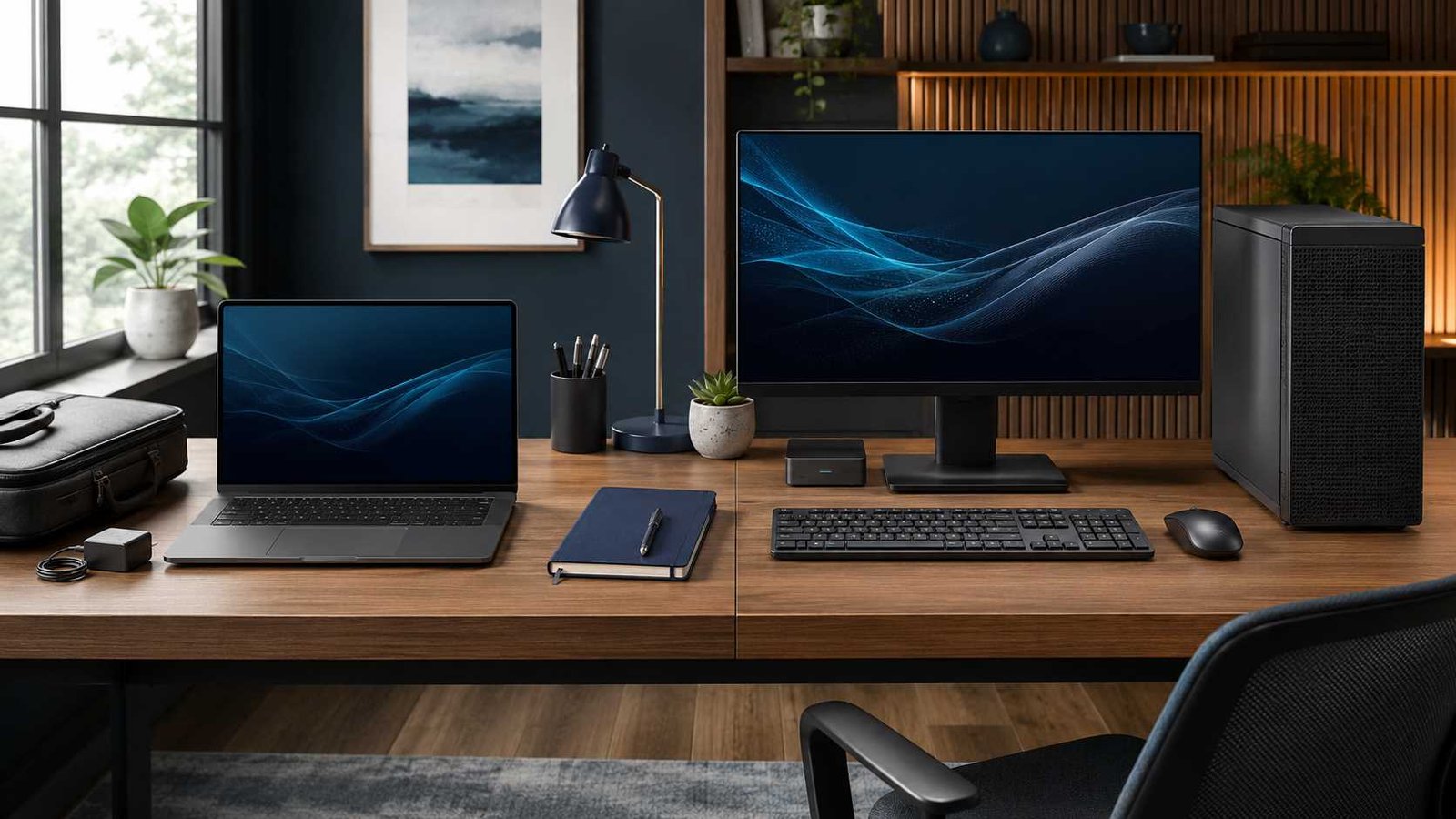
Laptop vs Desktop: The Quick Verdict
A laptop is usually the better choice for students, frequent travellers, hybrid workers, and people living in homes with limited desk space. It starts working with almost no extra equipment. You can move it between rooms, take it to a class, work during a power interruption, or connect it to a larger display when you return home. A modern midrange laptop can comfortably handle web browsing, office software, video calls, programming, streaming, and basic creative work.
A desktop is usually the better choice for serious gaming, long video exports, 3D rendering, engineering software, large data projects, and workloads that keep the processor or graphics card busy for extended periods. Its larger enclosure can hold bigger fans, stronger cooling systems, full-size graphics cards, several storage drives, and a higher-capacity power supply. You can often replace one part instead of replacing the whole computer.
A hybrid setup sits between these options. You use a laptop when travelling, then connect it to a monitor, keyboard, mouse, Ethernet connection, speakers, and external storage through a dock. This arrangement suits many remote workers and students, although it does not provide the same upgrade flexibility as a modular desktop.
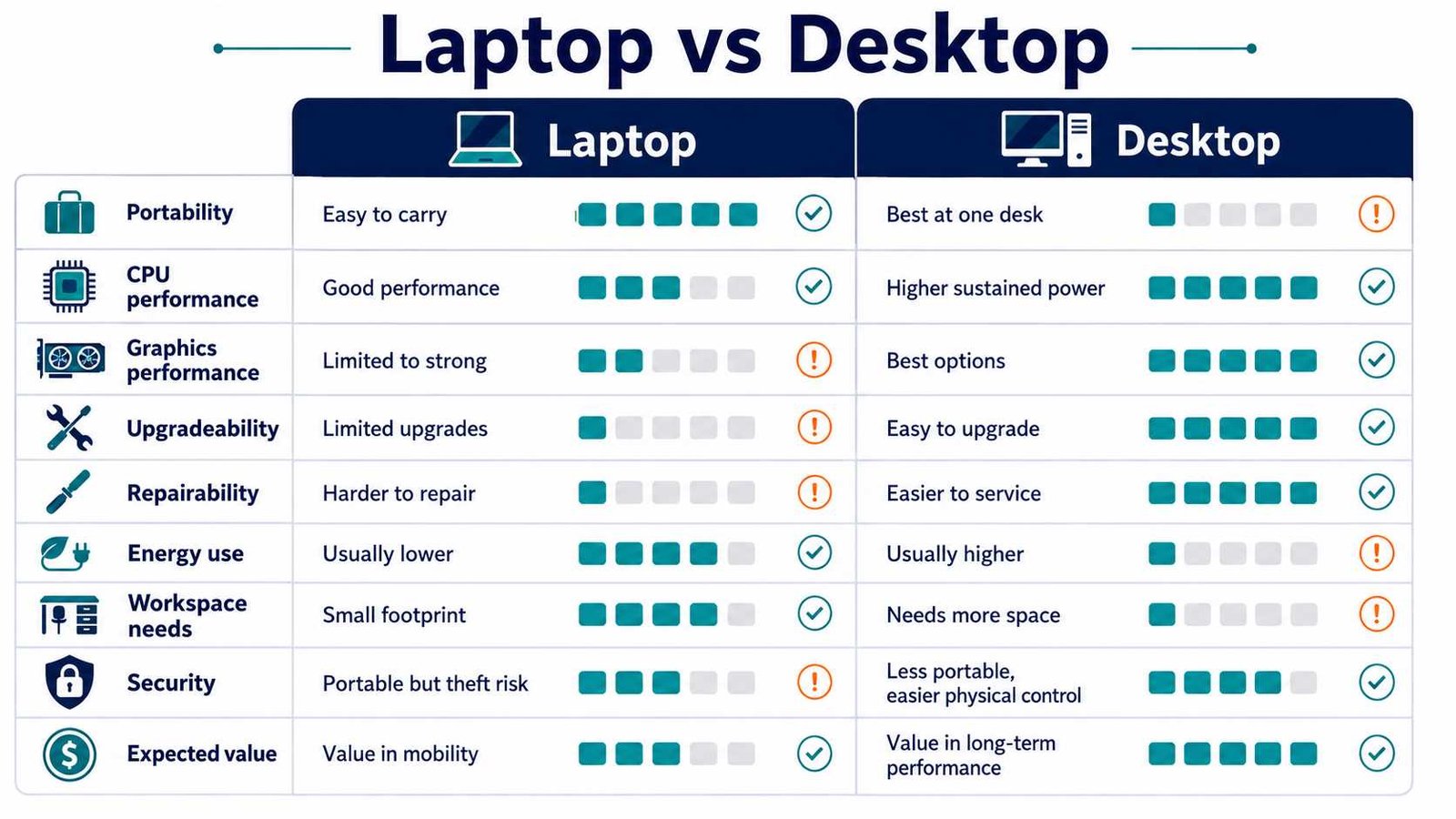
| Comparison Area | Laptop | Desktop | Better Choice |
|---|---|---|---|
| Portability | Easy to carry | Fixed in one place | Laptop |
| Sustained performance | Limited by heat and power | Better cooling and power capacity | Desktop |
| Upgradeability | Often limited | Usually flexible | Desktop |
| Setup convenience | Display and battery included | Needs separate equipment | Laptop |
| Repair options | Model-dependent | Parts are often replaceable | Desktop |
| Desk space | Compact | Needs dedicated space | Laptop |
| Energy use | Usually lower | Varies by hardware | Laptop |
| Physical security | Easier to lose or steal | Harder to remove unnoticed | Desktop |
| Cybersecurity | Depends on setup | Depends on setup | Tie |
How Laptop and Desktop Hardware Differ
Laptop manufacturers must fit the processor, graphics hardware, memory, storage, battery, cooling system, ports, speakers, keyboard, and display into one thin enclosure. This design creates obvious benefits, but it also creates limits. Small fans move less air than large desktop fans. Thin heat pipes have less room to spread heat. A battery cannot supply unlimited power without reducing battery life or creating excessive heat.
A desktop separates these parts inside a larger case. Its processor cooler can use a large metal heatsink, several fans, or liquid cooling. A full-size graphics card can have its own cooling system. The case can also hold extra storage drives, memory modules, network cards, capture cards, and other components.
Cooling matters because modern processors automatically increase their speed when temperature and power conditions allow it. This temporary increase is often called boost or turbo performance. A laptop may perform very well during a short task, then reduce speed after several minutes as heat builds inside the chassis. This process protects the hardware and is commonly called thermal throttling.
A desktop with adequate cooling can often maintain higher performance for longer. That difference may not appear while opening a browser or typing a document. It becomes more visible during video rendering, large software builds, scientific calculations, game streaming, local AI processing, and other continuous workloads.
This does not mean every desktop beats every laptop. A premium laptop can outperform an old or low-cost desktop. You must compare complete systems, including processor generation, cooling design, memory, storage, graphics hardware, and power limits.
Do Desktops Run Faster Than Laptops?
Desktops often run faster when you compare systems from a similar price range or hardware generation, especially during demanding work. However, the size of the difference depends on the task.
For web browsing, email, documents, streaming, and video calls, a modern laptop and desktop may feel almost identical. These activities rarely use the processor or graphics hardware at full power for long periods. An SSD and enough memory can affect the experience more than a small difference in processor speed.
Gaming creates a more complicated comparison. A laptop graphics processor may share a name with a desktop graphics card, but that does not mean both versions deliver the same performance. Laptop manufacturers must balance graphics power, cooling, charger size, noise, weight, and battery use. NVIDIA states that performance can vary between laptop models and advises buyers to check the manufacturer’s exact specifications. Its laptop graphics ranges also use different power levels for the same general GPU class. and professional workloads usually give desktops their largest advantage. Video editing, animation, 3D rendering, computer-aided design, engineering simulations, and code compilation can keep the hardware busy for minutes or hours. Larger desktop coolers and higher power limits help the system maintain speed throughout the job.
Performance per dollar also tends to favor desktops because manufacturers do not need to include a battery, thin display, compact keyboard, touchpad, hinges, and miniature cooling system. However, remember to include the price of a monitor, keyboard, mouse, webcam, speakers, and backup power when comparing total cost.
Is a Laptop CPU Weaker Than a Desktop CPU?
A laptop CPU is not automatically weak. Current laptop processors can handle demanding software, multitasking, gaming, and professional creative work. The important difference is how much power and cooling the processor can use.
Consider two processors from the same broad Intel family. The desktop Intel Core Ultra 9 285K has 24 cores, a processor base power of 125 watts, and a maximum turbo power of 250 watts. The mobile Core Ultra 9 285HX also has 24 cores, but Intel lists a base power of 55 watts and a maximum turbo power of 160 watts. The mobile processor is still powerful, but it works within a smaller thermal and electrical limit. also shows why you should not judge a CPU by the words Core Ultra 9, Core i7, Ryzen 7, or Ryzen 9 alone. Manufacturers sell different processor families for thin laptops, performance laptops, workstations, and desktops. Two computers with similar-looking processor names may have different core counts, clock speeds, graphics features, cache sizes, and power limits.
A laptop CPU is more than sufficient for most students, office workers, business owners, programmers, and photographers. A higher-powered laptop can also support professional editing and engineering work. The desktop advantage becomes more important when you need maximum speed for long tasks, plan to upgrade the processor later, or want to combine a high-power CPU with a large graphics card.
Always compare independent tests for the software you actually use. A benchmark that measures a ten-second task may not reveal how the computer behaves during a one-hour render.
Cost, Energy Use, and Long-Term Value
A laptop can appear expensive when you compare its specifications with a desktop tower. However, the laptop price includes equipment that desktop buyers often purchase separately. A monitor, keyboard, mouse, webcam, speakers, Wi-Fi adapter, and uninterruptible power supply can add a meaningful amount to the desktop budget.
The desktop usually becomes more valuable over a longer ownership period. You may replace its graphics card, add memory, install a larger SSD, change the power supply, or upgrade the monitor without discarding the rest of the system. A laptop may allow an SSD or memory upgrade, but many thin models use soldered memory and tightly integrated parts. A damaged laptop motherboard can also affect the processor, graphics hardware, charging system, and ports at once.
Energy use depends on the actual hardware and workload. Laptops are generally designed around efficiency because they must operate from a battery. A gaming desktop with a powerful graphics card can use far more electricity than a basic notebook. A small office desktop without dedicated graphics may use much less.
ENERGY STAR does not treat every computer as though it has the same energy requirements. Its computer specification covers notebooks, desktops, integrated desktops, thin clients, and workstations while applying allowances for different product types and features. It also requires power-management functions that reduce unnecessary consumption. mparison, estimate the complete purchase price, likely repair costs, electricity use, and expected ownership period. A cheaper device that needs replacement after two years may cost more than a repairable computer that remains useful for five or six years.
Portability, Workspace, and Comfort
Portability is the laptop’s strongest advantage. You can take it to a classroom, meeting, shared office, café, library, or customer site. Its battery also lets you save work and continue briefly during a power outage. This benefit matters in regions where electricity interruptions occur regularly.
A desktop needs a stable location, power source, monitor, and input devices. Moving the system between rooms takes effort, while transporting it between buildings can be impractical. However, a permanent setup can improve focus and organization. You can position a large monitor at eye level, use a full-size keyboard, add an ergonomic mouse, and manage cables neatly.
Laptop ergonomics create a common problem. The keyboard and screen are physically connected. When you place the screen at a comfortable height, the keyboard becomes too high. When you place the keyboard at a comfortable height, the screen sits too low. Long sessions can contribute to neck, shoulder, wrist, and back discomfort.
A laptop stand with an external keyboard and mouse solves much of this problem. A larger monitor can improve comfort further. The result looks and feels similar to a desktop workstation while preserving portability.
Mini Case Study: The University Student
A student attends classes four days a week and completes assignments in a shared bedroom. A laptop is the practical choice because it can travel to class and requires little space. At home, the student connects it to a 24-inch monitor and full-size keyboard. This hybrid setup costs more than using the laptop alone, but it creates a healthier study position and avoids buying two computers.

Upgradeability, Repairability, and Lifespan
Most standard desktops use modular components. You can usually replace the memory, storage, power supply, graphics card, cooling fans, and network adapter. Depending on the motherboard and processor platform, you may also upgrade the CPU. This modular structure allows a desktop to change as your needs grow.
Laptop upgrade options vary widely. Some business and gaming laptops provide removable memory modules, two storage slots, replaceable wireless cards, and accessible batteries. Other models solder the memory and storage directly to the motherboard. Thin designs may also use glued batteries or model-specific parts that become difficult to find later.
Before buying a laptop, search for its service manual and internal layout. Check whether the memory is soldered, how many storage slots it has, whether the battery can be replaced, and whether the manufacturer sells parts in your region. Do not rely on the product page alone.
A desktop often has a longer useful performance life because you can replace the component that becomes limiting. For example, you can add memory when software grows heavier or install a newer graphics card when games become more demanding. A laptop may remain physically functional but become difficult to improve.
Battery ageing also affects laptop ownership. Every rechargeable battery gradually loses capacity. The computer may still work while connected to the charger, but reduced battery life removes part of the reason for choosing a portable device.
Lifespan depends on maintenance as well. Dust, blocked vents, heat, unstable electricity, liquid spills, poor chargers, and full storage drives can shorten the useful life of either system. A desktop is not automatically durable, but its replaceable parts make recovery easier after many common failures.
Are Desktops Safer Than Laptops?
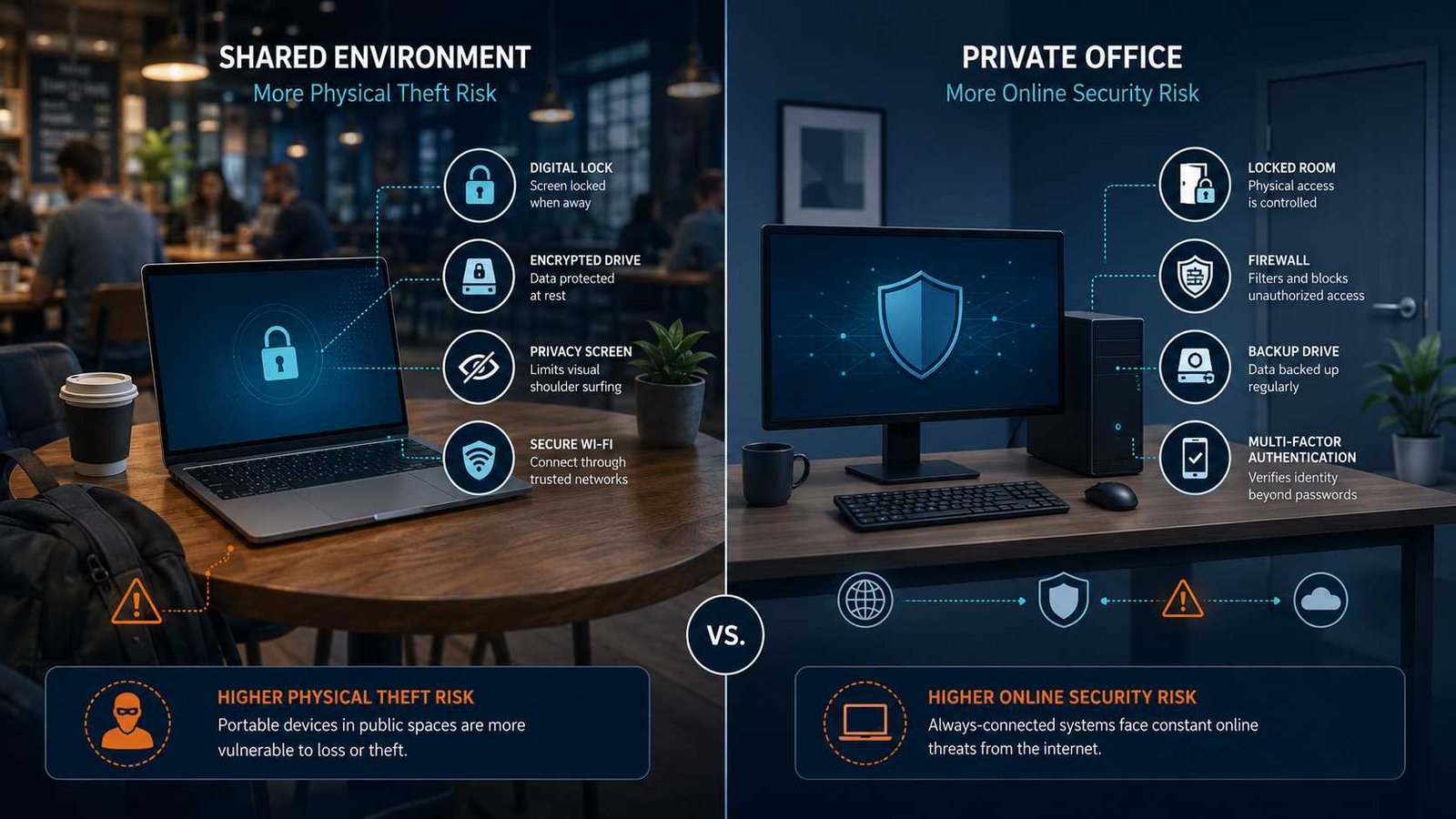
A desktop is usually safer from casual loss and theft because it remains in one location and is harder to remove unnoticed. A laptop travels through classrooms, airports, vehicles, hotels, cafés, and shared offices. Each movement creates another chance of loss, damage, or unauthorized access.
Cybersecurity is different. A desktop is not automatically safer from phishing, malware, account theft, ransomware, unsafe downloads, weak passwords, or unpatched software. Both computer types can store sensitive documents, saved browser sessions, financial records, customer data, and personal photographs.
CISA recommends encrypting computers, removable media, and files, then backing up important data to a secure external drive or properly vetted cloud service. Encryption becomes especially important for portable computers because a stolen laptop can expose its storage to someone with physical access. can use Device Encryption on supported systems or BitLocker on compatible editions. Microsoft describes BitLocker as a built-in feature that protects data by encrypting an entire drive. Users must also save the recovery key safely because Microsoft cannot recreate a lost key. r setup with automatic updates, multi-factor authentication, screen locking, secure backups, a standard user account for daily work, and a strong device password. A business should also control who can install software and who can access customer data.
The bottom line is simple: desktops have an advantage in physical security, but both formats need the same serious cybersecurity practices.
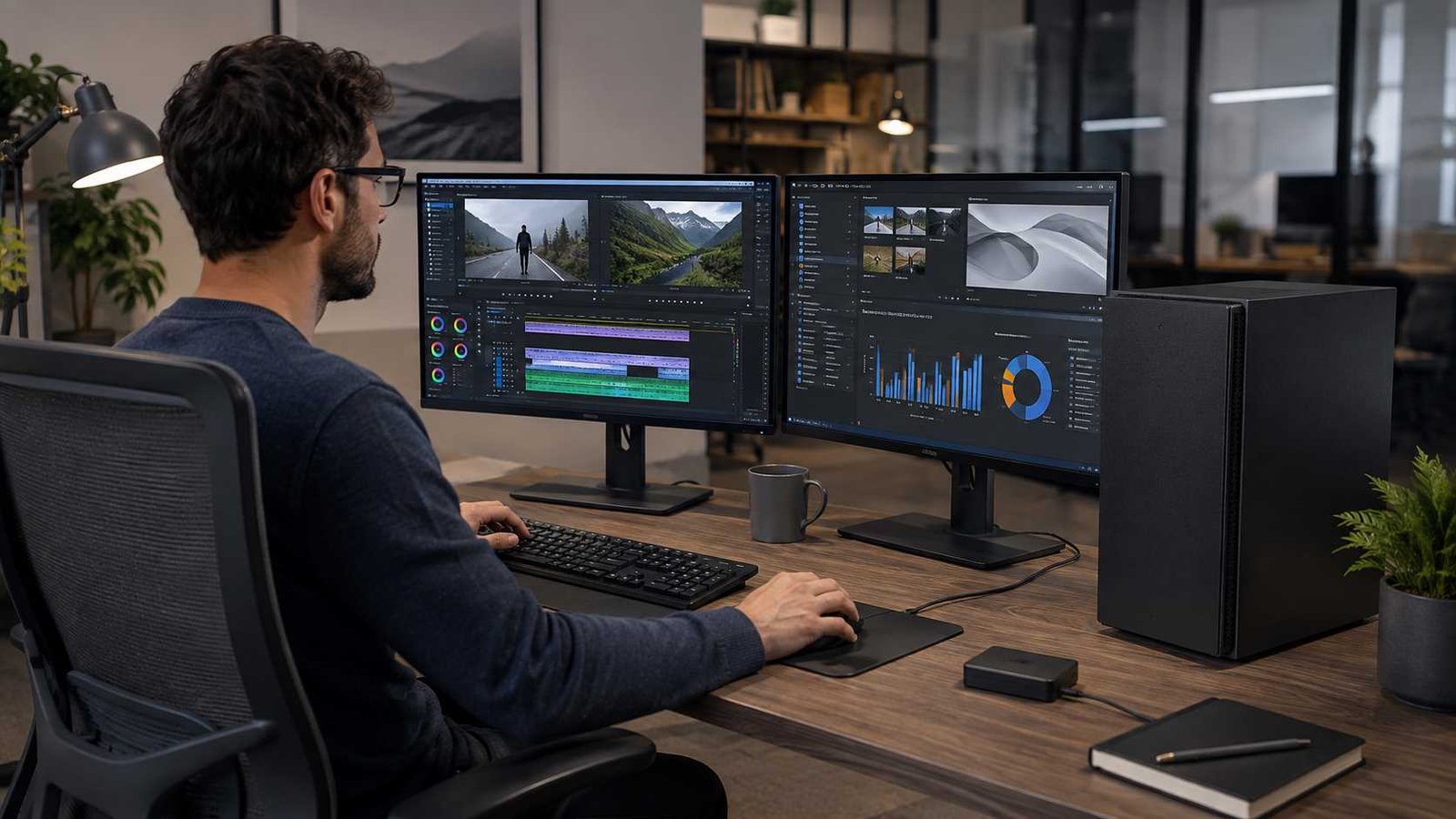
Which Setup Fits Your Type of Work?
Students
A laptop is the right choice for most students because assignments, online classes, presentations, research, and group projects happen in several locations. Aim for enough memory to keep browser tabs, office software, and video calls open together. Students studying architecture, animation, engineering, data science, or game development should check the hardware requirements for their course software before buying an ultra-thin model.
Remote Workers
A laptop with a dock offers the most flexibility. It can connect to a monitor and Ethernet at home, then travel to meetings or another workspace. A desktop makes sense when the employee works from one room, handles large files, needs several monitors, or has a separate portable device for emergencies.
Small Business Owners
The best choice depends on the work location. A shop counter, reception area, or accounting desk may benefit from a desktop because it remains fixed and is harder to remove. A consultant, property agent, trainer, or field manager may need a laptop. Businesses should also plan for failure. Keeping data only on one computer creates more risk than the choice between laptop and desktop.
Gamers
A desktop generally provides better gaming performance per dollar, stronger cooling, quieter operation under load, and a clear graphics upgrade path. A gaming laptop makes sense when the user travels frequently or cannot maintain a permanent gaming desk. Buyers should check the laptop GPU’s actual power rating, cooling reviews, screen quality, and charger size instead of relying only on the graphics model name. NVIDIA confirms that performance varies by laptop model and system configuration. and Content Creators
A desktop suits long renders, large storage libraries, capture cards, several displays, and powerful graphics hardware. A creator who works at client locations may prefer a performance laptop and external SSDs. In either case, display colour accuracy and backup strategy matter as much as processor speed.
Developers and Technical Learners
Most coding works well on a midrange laptop. A desktop becomes useful for several virtual machines, local servers, large software builds, multiple monitors, or local AI models that require substantial memory and graphics capacity.
Mini Case Study: The Video Editor
A freelance editor first chooses a thin laptop because it has a fast processor and looks easy to carry. Short edits work well, but long 4K exports increase fan noise and reduce performance. The editor moves primary work to a desktop with larger cooling, more storage, and a replaceable graphics card. The laptop remains useful for client previews and travel. The lesson is not that the laptop failed. The workload required a different design.
Can a Laptop Replace a Desktop?
A laptop can replace a desktop for many people when it has the right ports, performance, and external equipment. Connect it to a USB-C or Thunderbolt dock, then add a monitor, keyboard, mouse, Ethernet cable, speakers, and external storage. One connection can turn a portable machine into a comfortable workstation.
This approach works well for office work, programming, education, business management, photo editing, and moderate content creation. It also keeps files and software on one computer, which reduces the confusion of switching between two systems.
However, a dock does not remove the laptop’s internal limits. The processor and graphics hardware still use laptop cooling. Memory may remain soldered. The battery continues to age. A motherboard failure can still affect most major components. Some docks also limit monitor resolution, refresh rate, or external storage speed depending on the laptop’s port capabilities.
Check the number of supported displays, USB-C charging requirement, external monitor resolution, Ethernet speed, and dock compatibility before buying. A low-cost USB-C port may support data only and may not carry video or accept charging.
A docked laptop is the best middle ground when mobility matters but most work happens at a desk. A desktop remains the stronger option when performance, internal expansion, and long-term repairability matter more.
Test Your Current Computer Before Replacing It
A slow computer does not always need replacement. First identify what is causing the delay.
On Windows, open Task Manager and check the Performance section while running your normal software. Watch CPU, memory, disk, network, and GPU activity. Microsoft recommends monitoring these resources to identify processes that may be slowing the computer. It also notes that low free storage can affect performance and interfere with updates. check CPU, memory, energy, disk, and network activity through Activity Monitor. Apple also includes system diagnostic options within Activity Monitor on supported macOS versions. e patterns:
- Memory remains near full while several normal applications are open.
- Disk usage reaches 100% during simple tasks.
- Free storage falls below a comfortable working margin.
- The computer becomes hot and slows during long jobs.
- The battery drains quickly or shuts down unexpectedly.
- One startup program consumes resources after every restart.
An SSD upgrade can make an older computer feel much faster if it still uses a mechanical hard drive. More memory can help when applications constantly reload or the system relies heavily on virtual memory. Cleaning vents and correcting a cooling problem may restore lost performance.
Test a real task before and after making changes. Time a video export, spreadsheet calculation, game loading screen, or software build. Real work gives you a better buying signal than a general feeling that the computer is old.
How to Choose Between a Laptop and Desktop
1. List Your Most Demanding Tasks
Write down the software, games, file sizes, and projects you use every week. Buy for the most demanding regular task, not a rare job that happens once a year.
2. Decide How Often You Need Mobility
Moving a computer from one room to another is different from carrying it to work every day. A small desktop or all-in-one may suit home movement, while regular travel strongly favors a laptop.
3. Set a Complete Budget
Include the computer, display, keyboard, mouse, docking station, storage, backup device, software, warranty, and power protection. Compare complete setups rather than advertised base prices.
4. Match Performance to the Workload
Office users should prioritize enough memory, a modern processor, and an SSD. Gamers and creators should examine graphics performance and cooling. Developers using virtual machines may need more memory and processor cores.
5. Check Repairs and Upgrades
Review service manuals and warranty terms. Confirm whether you can replace memory, storage, battery, cooling fans, or graphics hardware. Availability of parts can matter more than a small benchmark difference.
6. Compare Exact Models
Do not compare a generic laptop category with a generic desktop category. Compare the two complete systems you could actually buy. Check their processor model, graphics power, memory configuration, storage, ports, display, cooling reviews, and warranty.
7. Plan for Three to Five Years
Think about how your work may change. A student may begin video editing. A small business may add accounting software or customer databases. A gamer may want a newer graphics card. Choose enough capacity for reasonable growth without paying for extreme hardware you will never use.
Common Laptop and Desktop Buying Mistakes
| Problem | Cause | Impact |
| Buying a thin laptop for heavy rendering | Portability chosen over cooling | Heat, noise, and reduced sustained speed |
| Comparing processor names only | Power class and generation ignored | Unexpected performance |
| Forgetting desktop accessories | Tower price treated as total cost | Budget increases later |
| Buying too little memory | Cheapest configuration selected | Early slowdowns or replacement |
| Ignoring repair access | No service manual checked | Expensive repairs |
| Buying a desktop despite daily travel | Work location ignored | Computer unavailable when needed |
| Buying a gaming laptop for office work | Specifications exceed real needs | Higher price, weight, and fan noise |
| Skipping backups | Device treated as permanent storage | Serious data loss after failure or theft |
Frequently Asked Questions
Is It Better to Have a Desktop or a Laptop?
A laptop is better when portability, compact size, and built-in battery power matter most. A desktop is better when you want maximum performance, easier upgrades, better cooling, or several monitors and storage drives. The correct choice depends on your workload and location.
Is a Laptop CPU Weaker Than a Desktop CPU?
Not always, but laptop processors usually operate within lower power and cooling limits. A high-end laptop CPU can outperform a low-cost desktop CPU. A desktop processor from a similar performance tier will often maintain higher speed during long, demanding workloads.
Are Desktops Safer Than Laptops?
Desktops are harder to lose or steal during normal use. That gives them a physical security advantage. They are not automatically safer from malware, phishing, ransomware, or account theft. Both need encryption, updates, backups, strong passwords, and multi-factor authentication.
Do Desktops Run Faster Than Laptops?
Desktops often run faster during gaming, rendering, software compilation, and other sustained work because they can use larger cooling systems and higher power limits. For browsing, office software, streaming, and video calls, users may notice little difference between well-configured modern systems.
Can a Laptop Be Used Like a Desktop?
Yes. Connect it to a docking station, external display, keyboard, mouse, Ethernet network, and storage. This creates a comfortable desktop-style workspace while keeping the computer portable.
Which Is Better for Gaming?
A desktop usually offers better gaming performance, cooling, repairability, and future graphics upgrades. A gaming laptop is better for someone who travels, studies away from home, or cannot keep a permanent gaming setup.
Which Computer Type Lasts Longer?
A well-maintained laptop or desktop can last for years. Desktops often have a longer useful performance life because owners can replace individual components. Laptop batteries age, and integrated parts can make major repairs expensive.
Should a Small Business Use Laptops or Desktops?
Use desktops for fixed counters, reception desks, shared office stations, and workloads that need several monitors. Use laptops for employees who travel, attend meetings, or work from home. Many businesses benefit from a mixture of both.
Printable Laptop vs Desktop Checklist
Before buying, confirm the following:
- My main software and workload
- How often I need to travel
- Available desk space
- Complete hardware budget
- Required CPU and graphics performance
- Minimum memory and storage
- Monitor size and quality
- Battery-life requirement
- Ports and docking support
- Memory and storage upgrade options
- Battery and replacement-part availability
- Expected electricity use
- Encryption and backup plan
- Warranty coverage
- Expected ownership period
Trusted Tools and Further Reading
Use Windows Task Manager or macOS Activity Monitor to check your existing computer before upgrading. Consult the exact processor specifications from Intel or AMD, graphics information from the GPU manufacturer, ENERGY STAR efficiency listings, and the computer manufacturer’s service manual. For security planning, review current CISA guidance on device encryption and backups. ghts Before You Choose Your Setup
A laptop offers freedom. You can carry it between rooms, workplaces, classrooms, and cities. It includes nearly everything needed to start working, and a dock can turn it into a capable home workstation.
A desktop offers control. You can choose the monitor, cooling system, storage, graphics card, keyboard, and other parts. It usually performs better during long workloads and gives you more ways to repair or upgrade the system later.
Do not buy a laptop only because it looks modern. Do not buy a desktop only because someone says desktops are faster. Start with your real work.
Choose a laptop when you regularly need the computer somewhere other than your desk. Choose a desktop when the computer will stay in one place and performance or upgrades matter more than mobility. Choose a docked laptop when you genuinely need both.
The best hardware setup is not the one with the most impressive specifications. It is the one that handles your daily work comfortably, protects your data, fits your space, and remains useful for years.

Certified network engineer and published author on emerging internet technologies. David translates technical knowledge into easy steps, ensuring readers learn practical fixes backed by professional experience and proven technical standards.