
The financial risk continues to grow. IBM’s 2026 Cost of a Data Breach Report puts the global average cost of a data breach at $4.99 million, a 12% increase from the previous year. IBM also found a 56% increase in AI-driven attacks. Organizations that extensively used AI and automation in security saved an average of $1.93 million compared with organizations that did not.
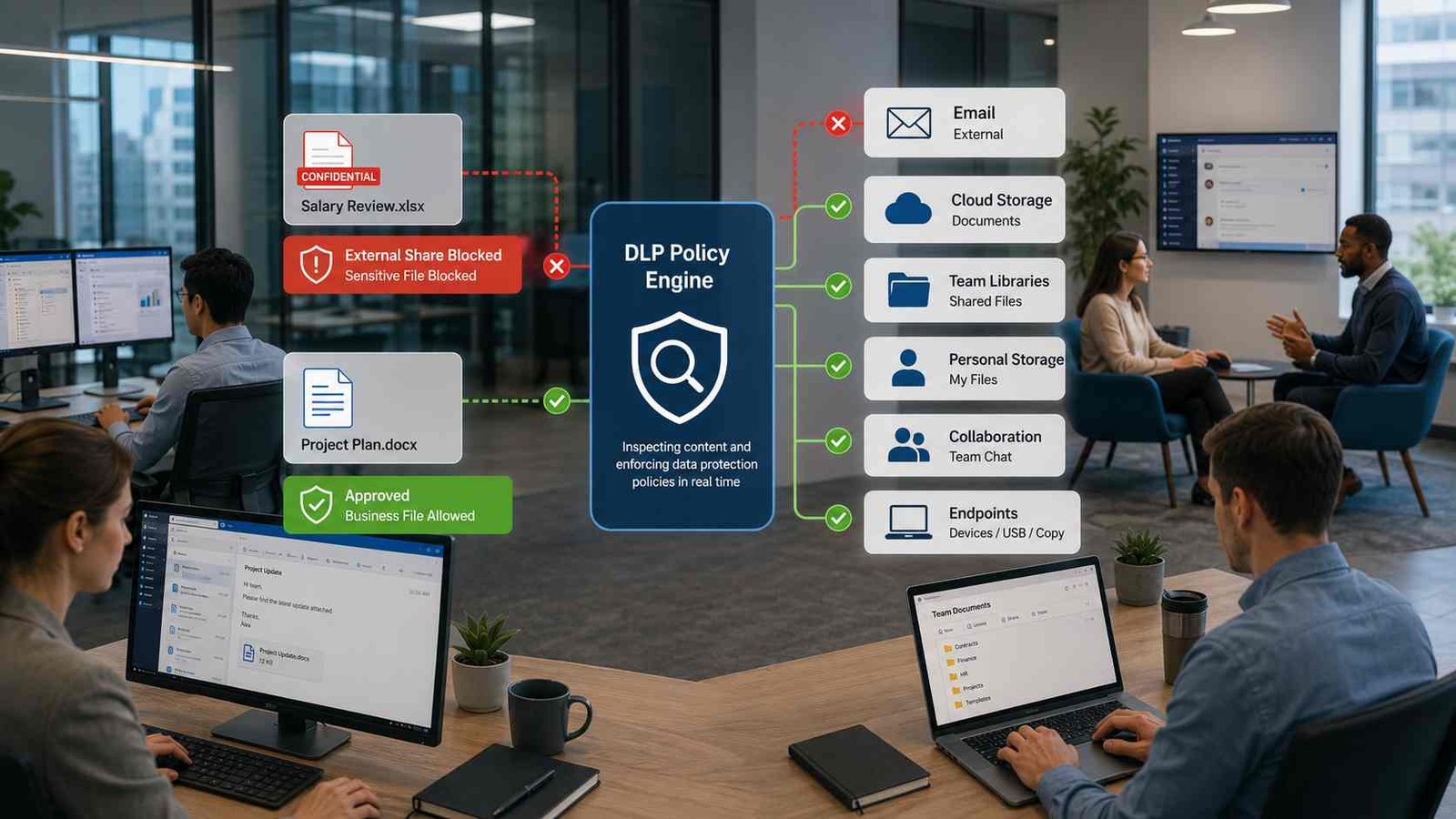
This is where data loss prevention in Office 365 becomes useful. Microsoft now delivers these controls primarily through Microsoft Purview Data Loss Prevention, usually shortened to Microsoft Purview DLP. It can identify sensitive information, watch how people use it, warn employees when an action creates risk, block prohibited sharing, and generate alerts for administrators.
For Techoble readers, the important point is simple: DLP is not just an enterprise compliance feature. A well-designed policy can stop everyday mistakes before they become expensive security incidents. Alex Turner is the best-fit Techoble author persona for this guide because his focus combines cybersecurity controls with practical explanations for students, administrators, and small businesses.
What Is Data Loss Prevention in Office 365?
Data Loss Prevention, or DLP, is a collection of security controls designed to recognize sensitive information and control what users can do with it. Microsoft describes DLP as technology that helps protect sensitive data against exposure, misuse, and loss while monitoring how that information moves across endpoints, networks, and cloud environments.
Within Microsoft 365, the current product is Microsoft Purview Data Loss Prevention. Older documentation, administrator discussions, and search results may still use terms such as Office 365 DLP or Microsoft 365 DLP. In practical terms, people searching for data loss prevention Office 365 are usually looking for the DLP controls now managed through Microsoft Purview.
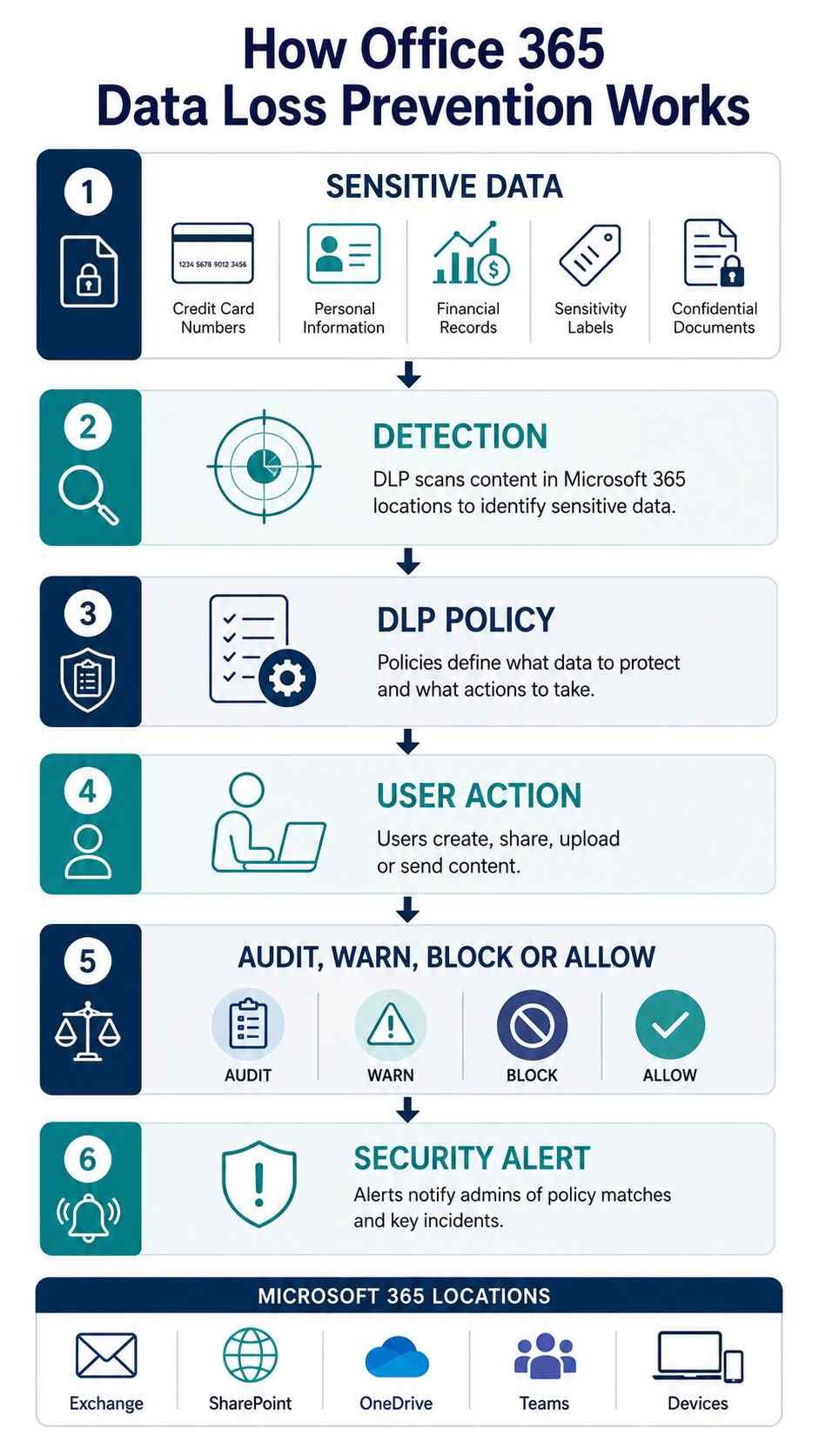
A DLP policy generally follows this process:
Sensitive information is detected → a policy evaluates the activity → Microsoft applies the configured action → the event can be logged or alerted.
Microsoft can recognize sensitive information through built-in or custom Sensitive Information Types, often called SITs. These classifiers can use regular expressions, functions, keywords, confidence levels, and nearby supporting evidence. Organizations can also work with sensitivity labels and trainable classifiers when simple pattern matching is not enough.
For example, imagine an employee attaches a spreadsheet containing customer payment-card numbers to an email addressed to an external supplier. A DLP rule can detect those numbers and respond according to the organization’s policy. It could simply record the event, display a warning, require a business justification, or block the message.
Does Office 365 Have DLP?
Yes. Office 365 includes DLP capabilities, although the exact features depend on the Microsoft subscription and workload.
Microsoft currently provides DLP protection for important Microsoft 365 locations including Exchange Online, SharePoint Online, OneDrive for Business, Teams, endpoints, cloud applications, network traffic, and Microsoft 365 Copilot scenarios. Not every license includes every location or advanced feature.
Exchange DLP can inspect email content and attachments. SharePoint and OneDrive policies can identify sensitive documents and restrict inappropriate sharing. Teams requires a little more explanation. Files shared through Teams normally live in SharePoint or OneDrive, so DLP protection for those storage locations can protect the files. DLP inspection of actual Teams chat and channel messages, however, has additional licensing requirements. Microsoft states that Office 365 and Microsoft 365 E3 include DLP for Exchange, SharePoint, and OneDrive, while DLP for Teams chat requires eligible E5-level licensing or related compliance entitlements.
Microsoft has also expanded DLP beyond traditional Office applications. Endpoint DLP can monitor activities involving sensitive files on Windows and supported macOS devices. Depending on configuration and licensing, policies can respond to actions involving removable storage, printing, browser uploads, network shares, clipboard activity, and other device-level behavior.
That broader coverage matters because protecting only email no longer protects the whole data path.
How Microsoft Purview DLP Works
The easiest way to understand Microsoft data loss prevention is to separate it into five stages.
1. Identify Sensitive Information
First, Microsoft needs to know what information deserves protection. Organizations might want to protect credit card numbers, national identification numbers, bank details, medical records, employee information, intellectual property, confidential contracts, or internally classified documents.
Microsoft provides built-in Sensitive Information Types for many common data formats. Administrators can also create custom SITs when their organization uses a unique customer ID, employee number, account format, or other recognizable pattern. Sensitive information detection can combine pattern matching with supporting evidence to reduce false positives.
2. Select Where the Policy Applies
A DLP policy can then be scoped to supported locations such as Exchange email, SharePoint, OneDrive, Teams chat, devices, Microsoft 365 Copilot, or other supported environments.
3. Define the Conditions
Conditions determine when the rule should trigger. You might detect a particular sensitive information type, a specific sensitivity label, content being shared outside the organization, or a combination of these conditions.
4. Choose the Response
Depending on the location and policy, Microsoft can audit the action, display a policy tip, send a notification, block access, restrict external recipients, allow an authorized override, or generate an administrative alert.
5. Investigate and Improve
Security teams can review policy matches and alerts, identify false positives, and refine the policy. Microsoft recommends using controlled deployment and simulation rather than immediately blocking every matching action.
Common Office 365 Data Loss Problems
DLP works best when administrators start with specific business risks instead of creating rules simply because the settings exist.
| Problem | Likely Cause | Possible Impact |
|---|---|---|
| Sensitive attachment emailed externally | Email DLP missing or poorly scoped | Customer or company data exposure |
| Confidential OneDrive file shared publicly | External sharing not controlled | Unauthorized access |
| Employee copies sensitive file to USB | Endpoint DLP not deployed | Offline data leakage |
| Valid business actions get blocked | Rules are too broad | Productivity problems |
| Security team misses policy violations | Alerts are not configured well | Slow investigation |
| Users repeatedly override warnings | Weak policy design or poor training | Continued risky behavior |
| Teams files are protected but chat text is not | Teams message DLP licensing/configuration missing | Sensitive information exposed in conversations |
One mistake deserves special attention: trying to protect everything with one aggressive rule. A financial document shared with an approved accountant is different from the same document sent to an unknown personal email account. Good DLP policies consider business context.
Microsoft’s policy tips help here because they can educate users instead of treating every match as malicious. A user can receive a warning while composing an Outlook message or working with a protected document. Administrators can also configure certain blocking rules to allow an override with a business justification or false-positive report. Those decisions are logged and can help security teams tune policies later.
What Are the Four Types of DLP?
A common search question is: What are the four types of DLP?
There is an important terminology issue. Microsoft currently lists three main DLP categories: network DLP, cloud DLP, and endpoint management DLP.
Some cybersecurity vendors and training materials separate email and web protection from general network DLP, creating a four-part model. Under that broader industry classification, the four types are:
| Type | Main Purpose | Example |
|---|---|---|
| Network DLP | Monitor data moving across networks | Detect confidential files sent externally |
| Endpoint DLP | Control data on user devices | Block sensitive data copied to USB |
| Cloud DLP | Protect information inside SaaS/cloud platforms | Restrict OneDrive or SharePoint sharing |
| Email/Web DLP | Inspect email and browser-based transfers | Block a sensitive attachment or web upload |
Network DLP
Network DLP looks at information moving through network channels. It can help detect data leaving through web applications, protocols, uploads, or other monitored traffic.
Endpoint DLP
Endpoint DLP works closer to the user and device. It becomes important after a file has been downloaded because cloud-only controls cannot always follow every local action. Microsoft Endpoint DLP can monitor activities such as USB transfers, browser uploads, printing, clipboard use, and network-share activity on supported devices.
Cloud DLP
Cloud DLP protects information stored and shared through cloud services. Exchange Online, OneDrive, SharePoint, and Microsoft 365 collaboration tools are major examples.
Email and Web DLP
Some security frameworks discuss email and web DLP separately because these channels account for many accidental leaks. Microsoft generally incorporates these protections within its broader network, cloud, endpoint, and workload-specific architecture rather than presenting email/web as an official fourth category.
How to Create a DLP Policy in Office 365
Creating a DLP policy is not difficult. Designing one that does not interrupt legitimate work takes more thought.
Step 1: Check Your Licensing
Start by confirming which DLP features your Microsoft plan includes. Exchange, SharePoint, and OneDrive DLP can be available under Office 365 or Microsoft 365 E3-class plans, while Teams chat DLP, Endpoint DLP, Copilot protection, aggregated alerting, and advanced capabilities can have additional licensing requirements. Microsoft’s current Purview service description should be your final reference because licensing changes over time.
Step 2: Confirm Administrator Permissions
Use an account with appropriate Purview or compliance permissions. Microsoft recommends least-privilege administration rather than using Global Administrator for routine tasks. Compliance Administrator and related information-protection roles are common choices depending on what you need to configure.
Step 3: Open Microsoft Purview
Sign in to the Microsoft Purview portal.
Go to:
Data Loss Prevention → Policies → Create policy
Microsoft documentation uses this workflow for new DLP policies.
Step 4: Select a Template or Custom Policy
Microsoft provides templates that can save time for common compliance and sensitive-data scenarios. A custom policy gives you more control when the business requirement is specific.
A useful policy objective might be:
Prevent customer payment-card information from being shared with external recipients.
A clear objective makes later rule decisions easier.
Step 5: Select the Locations
Choose the workloads that actually contain the data you want to protect. That might include Exchange email, SharePoint, OneDrive, Teams, devices, or Microsoft 365 Copilot.
Avoid checking every location automatically. A policy designed for customer payment information may require different controls on email than on endpoint printing.
Step 6: Configure Conditions
Select the sensitive information types, sensitivity labels, sharing conditions, user scope, or other criteria that should trigger the rule.
Microsoft’s own SharePoint and OneDrive external-sharing example combines two useful conditions: content is shared with people outside the organization and the content carries a Confidential sensitivity label.
Step 7: Decide What Happens When the Rule Matches
Possible responses include auditing, notification, restriction, blocking, or blocking with an allowed override.
Start with the least disruptive action that meets the security requirement.
Step 8: Configure Policy Tips and Notifications
Policy tips can appear while someone is composing email or interacting with protected documents. They explain that an action conflicts with organizational policy and can sometimes give the user a way to resolve the issue.
For permitted overrides, Microsoft can require a business justification or allow the user to report a false positive.
Step 9: Configure Administrative Alerts
Enable alerts for events that your security team actually intends to investigate.
Microsoft supports both individual and, with appropriate licensing, aggregated alert scenarios. An aggregated rule can help identify repeated lower-level activity that becomes meaningful when viewed over time.
Step 10: Use Simulation Mode
This is one of the most important steps.
Microsoft recommends gradually deploying policies. Administrators can begin with the policy off, move into simulation, show policy tips to a pilot group, review results, and then broaden enforcement when confident that the rule behaves correctly.
Step 11: Review Results Before Enforcement
Look for false positives, unexpected workflow interruptions, excessive alerts, or groups that should be excluded.
Then turn on enforcement for the intended scope.
That process is safer than moving directly from policy creation to organization-wide blocking.
Three Real-World Office 365 DLP Examples
Example 1: Stopping Credit Card Data From Leaving the Company
Microsoft provides a useful real example through its Default Office 365 DLP policy. As documented in March 2026, the default policy looks for the Credit Card Number sensitive information type when content is shared outside the organization. It applies to Exchange email, SharePoint sites, and OneDrive accounts and can notify the person involved and relevant content owners.
This is a practical starting point for a small retailer, accounting office, or online business that occasionally handles payment details.
Example 2: Protecting HR Documents in SharePoint
Imagine a 40-person business storing salary sheets and employee identity documents in SharePoint. The company applies a Confidential sensitivity label to HR records.
A DLP rule could identify that label when the document is shared outside the organization and block external access while notifying the employee who attempted the action. Microsoft’s documented SharePoint/OneDrive example uses this type of label plus external-sharing condition and recommends simulation before full deployment.
Example 3: Preventing Sensitive Teams Messages
Suppose an employee enters a customer identification number directly into a Teams chat with an external guest. If the organization has appropriately licensed and configured Teams DLP, Microsoft can evaluate chat and channel messages against sensitive-information policies. Depending on policy configuration, the sensitive message can be removed and a policy notification presented.
Office 365 DLP Licensing: What You Need to Know
Licensing is one of the easiest parts of Microsoft DLP to misunderstand.
Office 365 and Microsoft 365 E3 can provide DLP protection for Exchange Online, SharePoint Online, and OneDrive for Business. Microsoft also notes that files shared through Teams can receive this protection because Teams stores those files in SharePoint or OneDrive.
Teams chat and channel-message DLP has different requirements. Microsoft lists qualifying E5 and related compliance plans for that capability. Endpoint DLP and advanced Purview capabilities also require eligible licensing, while newer network, browser, and AI-related controls can have their own entitlement or pay-as-you-go requirements.
| Capability | Typical Microsoft Location | Licensing Note |
|---|---|---|
| Email DLP | Exchange Online | Available in qualifying Office/Microsoft 365 plans |
| File DLP | SharePoint and OneDrive | Available in qualifying E3/E5 plans |
| Teams file protection | SharePoint/OneDrive behind Teams | Follows file-storage DLP |
| Teams message DLP | Teams chats and channels | Requires qualifying advanced licensing |
| Endpoint DLP | Windows/macOS endpoints | Requires eligible Purview/Microsoft 365 entitlement |
| Copilot DLP | Microsoft 365 Copilot location | Licensing depends on Purview/Copilot capability |
Do not purchase a plan based only on a third-party comparison article. Microsoft changes packaging and service descriptions regularly. Check the current Microsoft Purview service description before deployment or renewal.
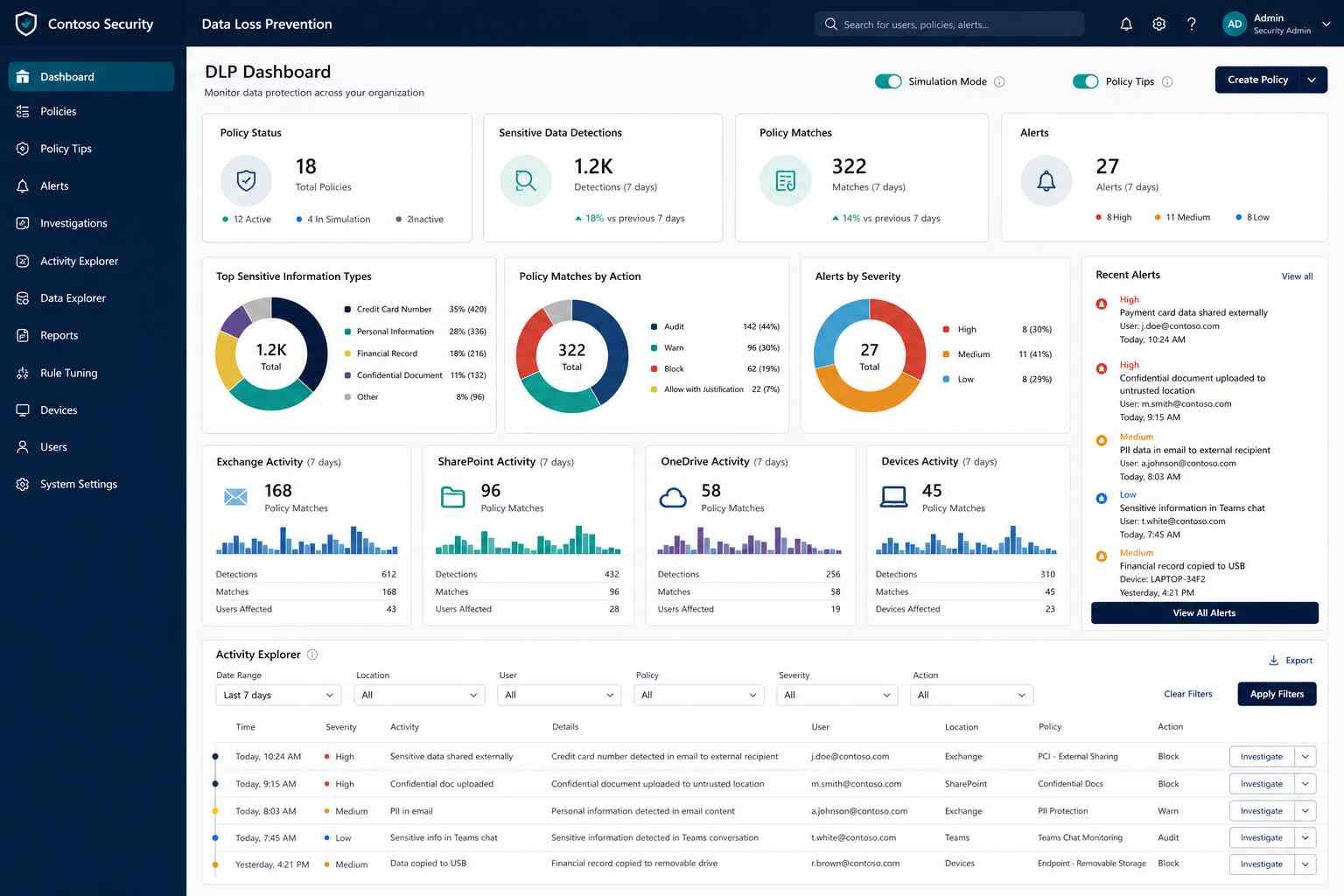
Monitoring DLP Policies and Alerts
A DLP policy should not become a set-and-forget control.
Administrators need to review what the policies actually detect. High numbers of legitimate overrides may indicate that a rule is too restrictive. A rule that never triggers may be scoped incorrectly or protecting the wrong data. Repeated matches from one user, department, device, or destination could indicate a training issue or more serious risk.
Microsoft Purview provides reporting and activity-tracking capabilities for DLP. Alerts can also be investigated through Microsoft Defender XDR. Microsoft currently recommends the Purview portal for creating and editing DLP policies, while Defender XDR is the recommended location for investigating and managing DLP alerts.
Microsoft is also adding more automation around investigation. The Microsoft Purview Triage Agent in DLP can triage alerts from policies scoped to Exchange, Teams, OneDrive, SharePoint, and endpoint locations when prerequisites are met. This can help security teams deal with larger alert volumes, although automated triage should support rather than replace clear policy design and human review.
Common DLP Policy Mistakes
The biggest DLP problems often come from policy design rather than technology.
Turning on blocking immediately is one of the most common mistakes. A rule may look perfect on paper but affect legitimate workflows that the administrator did not anticipate. Microsoft’s simulation features exist for this reason.
Creating rules that are too broad causes another problem. Searching for common words such as confidential without additional context can create noise. More precise sensitive information types, supporting evidence, sensitivity labels, sharing conditions, and confidence levels can improve detection.
Protecting cloud files but ignoring endpoints leaves a major gap. Once a file reaches a local device, users may print it, upload it elsewhere, copy it to removable storage, or move it through another application. Endpoint DLP exists to address these scenarios.
Blocking without educating users also wastes an opportunity. Policy tips can tell employees why the organization considers an action risky. In suitable cases, a justified override provides flexibility while keeping an audit trail.
Finally, assuming every Microsoft 365 license behaves the same can result in missing controls. Teams chats, endpoints, cloud apps, AI interactions, and advanced alerting each deserve a licensing check before the organization depends on them.
Advanced Microsoft Purview DLP Capabilities
Modern Microsoft DLP reaches much further than scanning Outlook messages.
Endpoint DLP
Endpoint DLP extends protection to supported Windows and macOS devices. Microsoft specifically documents controls and auditing around activities such as removable USB storage, clipboard operations, printing, network shares, restricted applications, browser uploads, and remote-transfer scenarios.
For organizations with remote workers, this closes an important gap between cloud storage and local device activity.
Browser and Cloud-App Protection
Microsoft Purview can also apply inline data controls to supported cloud-app and browser scenarios. Microsoft continues expanding network-level and cloud-app protection, with some capabilities licensed separately or through usage-based models.
Microsoft 365 Copilot DLP
AI has introduced a new data-loss question: what happens when employees place confidential information into prompts or allow AI systems to process sensitive files?
Microsoft now supports DLP for Microsoft 365 Copilot and Copilot Chat scenarios. Policies can restrict processing of prompts containing sensitive information types and restrict certain files or emails based on sensitivity labels. Microsoft also documents Endpoint DLP controls that can warn or block users from sharing sensitive information with third-party generative AI websites through supported browsers.
Microsoft even provides a default Copilot DLP policy that initially runs in simulation mode and detects specified sensitive information types in user prompts. Administrators must move the policy into enforcement if they want matching prompt processing blocked.
This reflects a wider change in security. IBM X-Force Cyber Crisis Management Global Lead Limor Kessem wrote in 2026 that “AI is compressing the time between exposure and impact.” That makes data classification and real-time policy enforcement increasingly important.
Office 365 DLP Best Practices
A successful DLP program does not begin by creating dozens of complicated policies. Start with the information that would cause real damage if it left the organization.
- Identify your highest-risk data first, such as payment information, customer PII, employee records, financial documents, and intellectual property.
- Map where that information actually lives and moves before choosing DLP locations.
- Use Microsoft’s built-in sensitive information types when they match your requirements.
- Combine detection with context such as external sharing, labels, user groups, or thresholds.
- Run new policies in simulation before enforcing them broadly.
- Use policy tips where user education can prevent repeat mistakes.
- Allow overrides only when the business genuinely needs them, and require justification when appropriate.
- Review alerts, false positives, overrides, and policy-match trends regularly.
- Include endpoints if users download sensitive cloud files to managed computers.
- Recheck licensing when adding Teams messaging, Endpoint DLP, Copilot, browser, or network protection.
- Review policies after organizational changes, mergers, new applications, or major workflow changes.
- Give administrators only the permissions required for their role.
Microsoft’s own training now emphasizes planning, simulation, deployment, analytics, Adaptive Protection, alerts, and continuous refinement rather than treating DLP as a single configuration task.
Practical Office 365 DLP Checklist
- List the sensitive data your organization needs to protect.
- Identify whether that data appears in Exchange, SharePoint, OneDrive, Teams, endpoints, or Copilot.
- Check current Microsoft 365 and Purview licensing.
- Assign appropriate compliance permissions.
- Select built-in or custom Sensitive Information Types.
- Add sensitivity labels where classification improves accuracy.
- Define a clear business purpose for each policy.
- Select only the required DLP locations.
- Configure conditions and thresholds.
- Decide whether the rule should audit, warn, restrict, or block.
- Configure policy tips and user notifications.
- Decide whether business overrides are appropriate.
- Configure administrative alerts.
- Run the policy in simulation mode.
- Review false positives and legitimate business matches.
- Pilot enforcement with a controlled user group.
- Broaden enforcement only after testing.
- Review alerts and policy activity regularly.
- Update policies when workflows, risks, or licensing change.
Frequently Asked Questions
Does Office 365 have DLP?
Yes. Microsoft provides DLP for Microsoft 365 and Office 365 workloads through Microsoft Purview Data Loss Prevention. Exchange Online, SharePoint Online, and OneDrive for Business are major supported locations. Additional capabilities cover Teams, endpoints, Copilot, cloud applications, and other data paths depending on licensing.
How do I create a DLP policy in Office 365?
Open the Microsoft Purview portal and go to Data Loss Prevention → Policies → Create policy. Choose a template or custom policy, select locations, configure conditions and actions, set notifications and alerts, and preferably run the rule in simulation before enforcing it.
What are the four types of DLP?
A common industry model uses network DLP, endpoint DLP, cloud DLP, and email/web DLP. Microsoft itself currently identifies three main categories: network, cloud, and endpoint management DLP. Email and web traffic are handled within those broader categories rather than presented as an official fourth Microsoft type.
What is Microsoft data loss prevention?
Microsoft Purview DLP is Microsoft’s system for identifying, monitoring, and protecting sensitive information. Policies can detect defined information and respond with actions such as auditing, warning users, restricting access, blocking sharing, or creating alerts.
Is Office 365 DLP the same as Microsoft Purview DLP?
Microsoft Purview DLP is the current platform and branding that includes the Office 365 DLP capabilities administrators traditionally used for Exchange, SharePoint, and OneDrive. It now covers a wider set of data locations and security scenarios.
Does Microsoft 365 E3 include DLP?
Microsoft states that Office 365 and Microsoft 365 E3 include DLP protection for Exchange, SharePoint, and OneDrive. Advanced capabilities such as Teams chat DLP and Endpoint DLP have separate licensing requirements.
Can DLP block Teams messages?
Yes, with appropriate Teams DLP licensing and policy configuration. Microsoft Purview can evaluate sensitive information in Teams chats and channel messages and take configured protective actions.
Can DLP stop users copying files to USB drives?
Endpoint DLP can monitor and restrict sensitive data copied to removable USB devices on supported, onboarded endpoints when the required policies and licensing are in place.
Can Microsoft Purview DLP protect Copilot data?
Yes. Microsoft now supports DLP controls for Microsoft 365 Copilot and Copilot Chat, including controls around sensitive prompts and protected files. Microsoft also supports Endpoint DLP scenarios involving third-party generative AI websites.
Useful Microsoft DLP Resources
For administrators who want to move from this guide into configuration, the most useful official resources are Microsoft’s Create and Deploy Data Loss Prevention Policies, Microsoft Purview service description, DLP notifications and policy tips, DLP and Microsoft Teams, Endpoint DLP, and DLP alerts documentation. Microsoft’s current training path on information protection and DLP is also useful for administrators who want hands-on practice with sensitive information types, labels, and DLP policies.
Final Thoughts Before You Turn On DLP
Data loss prevention in Office 365 works best when it supports normal business activity instead of fighting it. The goal is not to block every document, email, upload, or employee action. The goal is to recognize genuinely sensitive information and intervene when the way it is being used creates unacceptable risk.
Start with a few high-value scenarios. Protect customer financial information from external sharing. Control confidential HR documents. Watch sensitive files moving onto endpoints. Then test what happens in simulation before turning restrictions on.
Microsoft Purview gives administrators increasingly broad visibility across Exchange, SharePoint, OneDrive, Teams, endpoints, browsers, cloud services, and Microsoft 365 Copilot. That expanded reach makes DLP more useful, but it also makes careful policy design more important.
A strong deployment follows a simple pattern:
Know the data → understand how people use it → create focused policies → simulate the impact → educate users → enforce where necessary → review the results.
If you follow that process, DLP becomes more than a compliance checkbox. It becomes a practical layer of protection against the everyday mistakes, risky sharing habits, compromised accounts, and new AI-era data paths that can expose valuable business information.

Technology journalist with 12+ years in networking and cybersecurity. Known for simplifying complex tech into everyday solutions, Alex combines research, industry insight, and hands-on testing to guide readers with authority and clarity.