
SharePoint Online document management gives businesses a central place to store, organize, protect, search, share, and control company documents. Instead of keeping important files across employee laptops, email attachments, USB drives, and scattered network folders, a company can manage them through structured SharePoint document libraries. This matters even more in 2026 because business information now feeds not only human search and collaboration but also AI tools. Microsoft reported in July 2026 that Microsoft 365 Copilot had passed 30 million paid seats, while Microsoft 365 commercial cloud revenue continued to grow. That scale shows how quickly cloud-based work and AI-assisted information access are becoming normal business practices.
But uploading thousands of files to SharePoint does not automatically create a good document management system. A useful system needs document libraries, sensible metadata, permissions, version controls, search-friendly organization, ownership rules, and a clear lifecycle for old information. Microsoft lists document libraries with version history and access control among SharePoint’s core business features.
Here’s what matters: SharePoint works best when you design how information should be managed before you migrate the files. This guide explains how to build that structure, how to organize documents, what SharePoint costs, how permissions and versioning work, and where newer Copilot features fit into the picture.
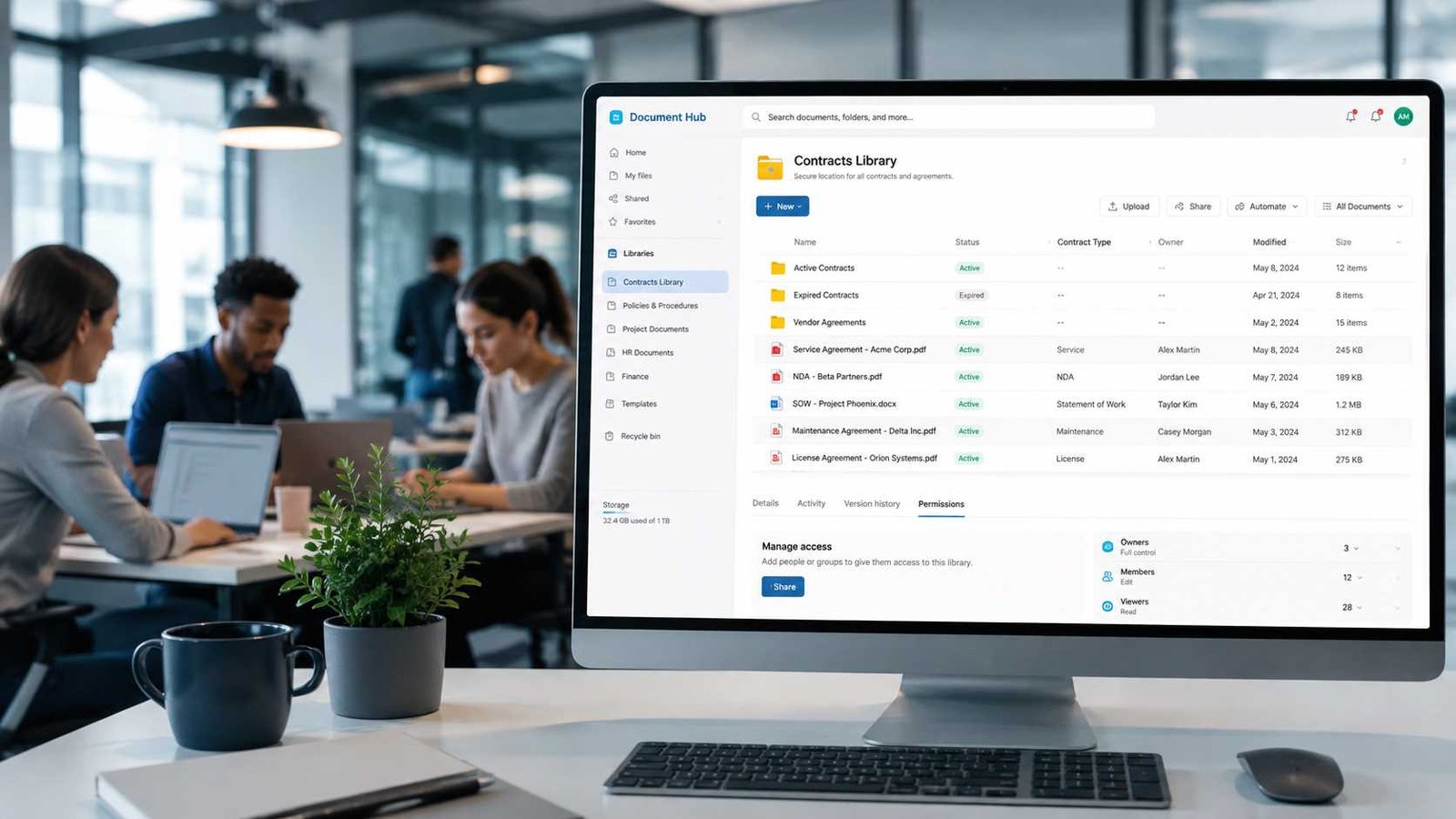
Expert take: Microsoft CEO Satya Nadella reported that Microsoft 365 Copilot had reached “over 30 million paid seats” by the end of Microsoft’s 2026 fiscal year.
What Is SharePoint Online Document Management?
SharePoint Online document management is the use of Microsoft SharePoint in Microsoft 365 to control business documents throughout their useful life. A document may start as a draft, pass through review and approval, become an official record, remain searchable for employees, and eventually move into an archive or retention process. SharePoint provides tools for each stage. A document library can store files while columns add business information such as owner, department, contract type, status, project, or review date. Views then let users display only the documents relevant to their work. Version history records changes, while permissions control who can read or edit the information.
This approach is different from a traditional shared folder. Imagine a folder called Contracts containing 3,000 files. Users may create subfolders for years, clients, countries, departments, and contract types. After several years, nobody remembers where a particular agreement belongs. In SharePoint, those same contracts can carry structured fields such as Vendor, Contract Owner, Expiry Date, Status, Region, and Contract Type. A user can then filter all contracts expiring in the next 90 days without knowing which folder contains them.
Microsoft’s managed metadata system takes this idea further by allowing organizations to create controlled terms and taxonomies. Microsoft says managed metadata improves consistency and supports better search and navigation.
That is the difference between storing files in SharePoint and managing documents with SharePoint.
Can You Use SharePoint for Document Management?
Yes. SharePoint Online can function as a capable document management system for small businesses, departments, schools, nonprofits, and large enterprises. Microsoft includes document libraries, version history, access controls, real-time collaboration, offline file access, sites, and integration with OneDrive among its current SharePoint capabilities.
SharePoint becomes particularly useful when several people need to work with the same documents. A sales team can maintain proposals and contracts. An HR department can store policies and controlled employee documents. A construction company can organize drawings, inspection records, and project files. A school can manage policies, course material, forms, and administrative documents. Users can open Office documents directly, collaborate on them, and avoid creating long chains of attachments named things such as Proposal-Final-v4-FINAL2.docx.
The main strengths are central storage, document history, metadata, collaboration, permissions, search, content types, and workflow integration. The weakness is that SharePoint requires planning. A poorly designed SharePoint environment can become just as confusing as an old shared drive.
For example, suppose a 25-person consulting company creates one document library called Company Files and then uploads 80,000 documents into deeply nested folders. SharePoint will technically store them, but the business has not solved its information problem. A better setup may use separate libraries for Contracts, Finance, HR, Operations, and Client Projects, each with appropriate metadata, views, owners, and permissions.
Why Businesses Use SharePoint Online for Documents
The main reason businesses adopt SharePoint Online document management is control. People need to know which document is current, who can access it, who changed it, and where to find it. Email attachments and unmanaged shared folders make those questions difficult to answer.
Version history solves part of the problem. Microsoft describes SharePoint version history as part of Microsoft 365’s built-in data protection. Users can view previous versions, compare changes, identify who edited a document, and restore an earlier copy after accidental or malicious changes.
Search and metadata solve another part. Instead of forcing users to remember folder paths, SharePoint lets them find information using document properties. A purchasing manager could filter Supplier Contracts by vendor, renewal date, owner, or status. A project manager could display only approved documents for Project A. Finance could create a view showing invoices awaiting approval.
Remote collaboration also becomes easier because authorized employees can work from different locations without passing files back and forth. External sharing can extend this collaboration to clients, vendors, and partners. Microsoft specifically supports external sharing through SharePoint and OneDrive, although administrators should configure the organization and site-level sharing rules carefully.
The result is not simply cloud storage. A properly designed system gives documents context, ownership, security, and a usable lifecycle.
Common SharePoint Document Management Problems
Most SharePoint document problems begin with design decisions rather than technical failure. Companies often migrate their existing file server exactly as it is, including years of duplicate folders, outdated files, unexplained abbreviations, and inconsistent permissions. That moves the mess to the cloud instead of fixing it.
| Problem | Common Cause | Likely Impact |
|---|---|---|
| Users cannot find files | Poor naming or missing metadata | Time lost searching |
| Too many folders | Old file-server structure copied into SharePoint | Difficult navigation |
| Duplicate documents | Files shared through email and downloads | Version confusion |
| Too much access | Broad or unmanaged permissions | Data exposure |
| Old documents stay active | No owner or lifecycle process | Content clutter |
| Search results feel weak | Missing classification and metadata | Slow retrieval |
| Different teams use different labels | No controlled terminology | Inconsistent reporting |
Permissions deserve special attention. SharePoint normally allows documents to inherit permissions from the site, library, or folder above them. Breaking that inheritance repeatedly creates unique permission scopes. Microsoft supports up to 50,000 unique ACLs in a document library but recommends keeping the number below 5,000 for best performance.
That is why creating individual access rules on thousands of files is usually a poor design. If a category of documents needs different security, separating that content into an appropriate library or site often creates a cleaner structure.
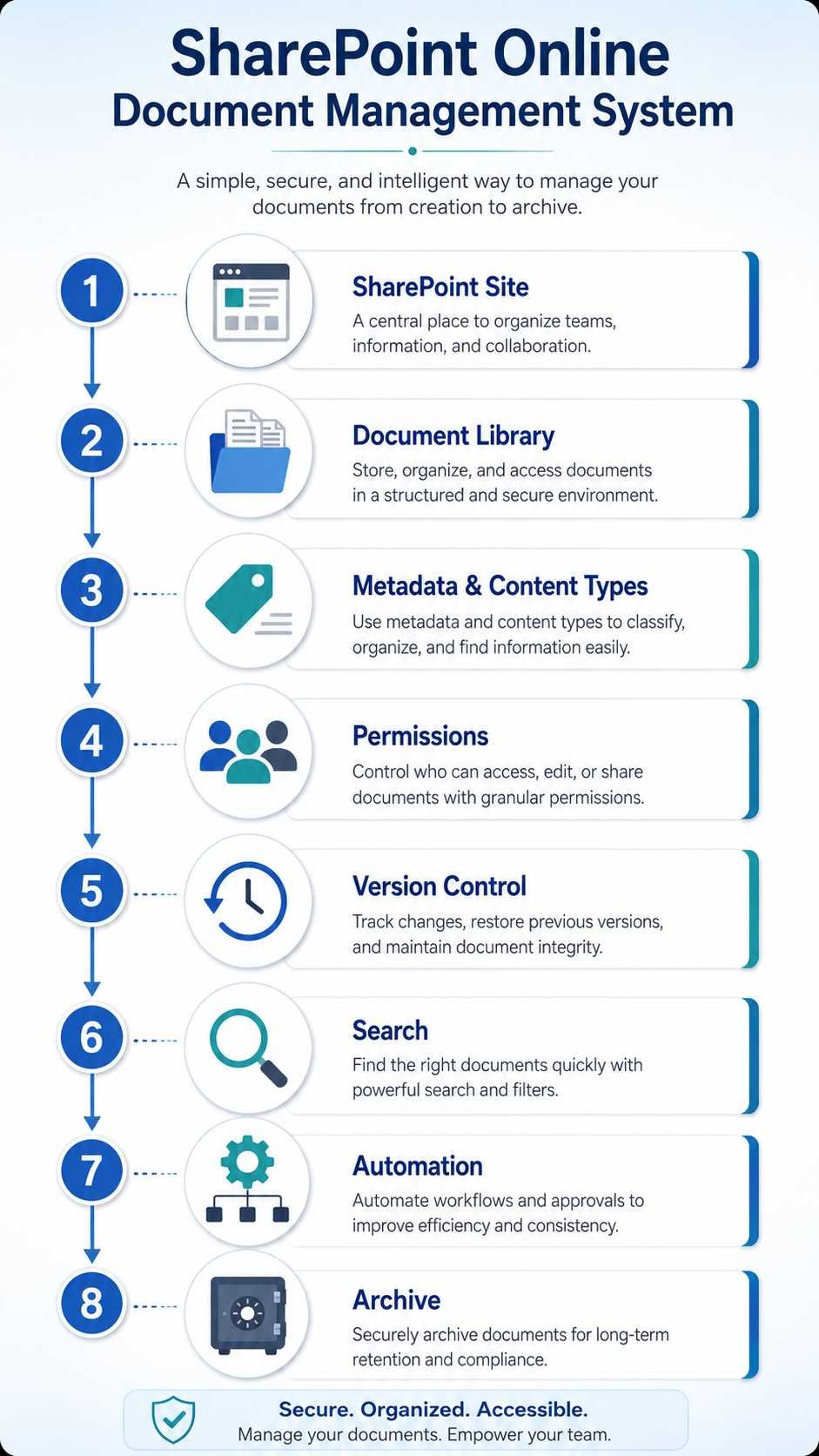
How to Create a Document Management System in SharePoint
A good SharePoint document management system follows a simple path:
Plan → Build → Classify → Secure → Automate → Test → Govern
1. Define What You Need to Manage
Do not begin by clicking Create Library. First identify the documents your organization actually uses.
List major categories such as contracts, invoices, policies, project files, HR documents, procedures, marketing assets, reports, and customer records. For each category, decide who owns it, who needs access, how long the document remains useful, and whether it contains confidential information.
Consider a contract. The company may need to know its supplier, contract owner, start date, expiry date, business unit, value category, status, and confidentiality level. Those requirements tell you how the SharePoint structure should work.
This planning stage also gives you a chance to remove ROT content: redundant, obsolete, and trivial information. Migrating a ten-year-old duplicate folder simply makes the new system harder to search.
2. Create the Right SharePoint Site
Next, decide where the documents belong. A SharePoint site represents a collaboration or communication space. Avoid creating a new site for every small folder, but do not force unrelated departments into one unrestricted site either.
For a small company, one main operations site may contain several libraries. A larger organization may need separate sites for Finance, HR, Legal, Projects, and other functions because ownership and security differ.
Use this rule: create boundaries around business purpose, ownership, and access, not around every small topic.
3. Build Document Libraries
A document library is the main container for files in SharePoint. Instead of creating one giant Company Documents library, divide information where there is a meaningful difference in use or security.
A simple setup might look like this:
- Contracts Library: agreements, renewals, vendor documents
- Finance Library: budgets, invoices, financial reports
- HR Library: policies and restricted personnel documents
- Projects Library: project plans, reports, deliverables
A small business does not need dozens of libraries. Create enough separation to make security and navigation clear without making users choose among 50 places every time they upload a file.
4. Add Metadata Columns
Metadata describes a document without changing the document itself. Common fields include Department, Document Type, Owner, Client, Project, Status, Review Date, Expiry Date, and Confidentiality.
For example, a Contracts library could include:
| Field | Example |
|---|---|
| Contract Type | Supplier |
| Owner | Sarah Khan |
| Vendor | ABC Services |
| Status | Active |
| Renewal Date | 15 November 2026 |
| Confidentiality | Internal |
Use choice fields when you want consistent values. If one employee enters Finance, another enters Accounts, and another enters Finance Department, filtering becomes unreliable. Managed metadata can provide centrally controlled terminology across sites and libraries. Microsoft notes that controlled term sets improve consistency in how people classify information.
5. Use Content Types When They Add Value
Content types are useful when several kinds of documents need different metadata, templates, or management rules. Microsoft describes them as a way to apply consistent characteristics to categories of content.
Suppose one library stores Proposals, Contracts, and Statements of Work. A Proposal may require Opportunity Number and Sales Owner. A Contract may require Renewal Date and Legal Owner. A Statement of Work may require Project Manager and Delivery Date.
Instead of forcing every document to use every field, content types can give each document category the information it needs.
For a small library with only one document type, however, simple columns may be easier. Do not add complexity merely because SharePoint supports it.
6. Create Useful Views
Views turn metadata into something users can work with. A library may contain 10,000 files, while a particular view displays only 25.
Useful views might include:
Active Contracts, Expiring in 90 Days, My Documents, Awaiting Approval, Recently Modified, or Policies by Department.
A view does not create duplicate copies. It shows the same documents through different filters, sorting, grouping, or displayed columns.
This is one of the biggest advantages of metadata over deep folders. The same contract can appear in an Active Contracts view, Sarah’s Documents view, and Contracts Expiring This Year view without moving or copying it.
7. Configure Version History
Versioning should be part of the design, not an afterthought. SharePoint can preserve previous versions so users can recover from errors or unwanted changes. Microsoft now provides automatic and manual approaches to version history limits. Automatic limits retain more recent versions while gradually thinning older ones, helping balance recovery needs against storage use.
Do not assume more versions are always better. Large, frequently edited files can consume substantial storage. Microsoft recommends evaluating storage and recovery requirements before setting unusually high limits.
Also remember that version history is not the same as a complete backup strategy. It is valuable for restoring file changes, but organizations should separately plan business continuity, retention, and recovery requirements.
8. Set Permissions Carefully
Start with the principle of least privilege. Give people enough access to do their jobs, but no more.
Use SharePoint or Microsoft Entra groups wherever practical instead of assigning permissions to individuals one document at a time. Microsoft guidance recommends using default groups such as Owners, Members, and Visitors, maintaining permission inheritance where possible, and using groups over individual permissions.
Think of permissions as building doors. It is easier to manage five locked rooms than 5,000 filing cabinets with different keys.
If Finance needs restricted access, a separate finance library or site may be cleaner than thousands of individual files with custom permissions.
9. Add Approvals and Automation
Once the information structure works, add automation where it removes repetitive work.
For example, uploading a new policy could trigger an approval process. An approaching contract renewal date could notify the contract owner. A document marked Approved could move into an official view. A rejected request could return to its creator for changes.
Keep the first workflows simple. Automation built on poorly designed metadata produces faster confusion, not better management.
10. Test With Real Users
Before moving all company documents, ask several real users to complete common tasks. Can they upload a file without help? Can they locate a contract without knowing its folder? Can they tell which version is current? Can a restricted user open confidential information? Can an owner restore an earlier version?
Fix problems while the system is small.
A pilot with one department and a few hundred documents often exposes more design problems than a week of theoretical planning.
How to Organize Documents in SharePoint
The best SharePoint structure usually combines libraries, metadata, views, and a limited number of folders. There is no rule saying folders are bad. Problems begin when users recreate deeply nested file-server paths such as Company > Operations > Projects > 2026 > North > Client A > Phase 2 > Reports > Approved > Final.
A shallow folder structure can still feel natural. For example, a Projects library may use one folder for each major project while metadata records document type, status, owner, and review date. Users gain familiar navigation without losing SharePoint’s filtering power.
| Method | Best Use | Main Weakness |
|---|---|---|
| Folders | Simple human navigation | Deep structures become difficult |
| Metadata | Filtering, search, reporting | Requires consistent tagging |
| Separate libraries | Different security or business purpose | Too many libraries confuse users |
| Views | Showing relevant subsets | Depends on good metadata |
Keep document names meaningful as well. Quarterly-Safety-Review-2026-Q2.docx tells users more than Report Final 3.docx.
Here’s what matters: do not ask users to complete 15 mandatory metadata fields every time they upload something. They will resist the system or enter meaningless values. Capture only information that improves search, workflow, security, reporting, or lifecycle control.
SharePoint Document Libraries Explained Simply
A SharePoint document library is more than a cloud folder. It stores files but also adds columns, views, permissions, version history, activity information, workflow connections, and content-management controls.
This is where SharePoint differs from OneDrive. OneDrive works well as an individual’s working area for personal files and drafts. SharePoint is generally better when information belongs to a team or organization rather than one person.
A useful rule is:
My work → OneDrive
Our work → SharePoint
This is not absolute. OneDrive still supports sharing and collaboration. But business documents that must survive staff changes, follow departmental governance, or remain part of an organizational knowledge base usually fit SharePoint better.
Lists are different again. A SharePoint List primarily stores structured records, such as tasks, assets, contacts, or requests. A document library focuses on files while adding structured information around those files.
SharePoint Permissions, External Sharing, and Security
Document security becomes more important as SharePoint connects with more collaboration and AI services. Start by knowing who owns each site and library. Review membership regularly. Remove stale guests. Avoid anonymous links for sensitive material. Separate confidential information when the access model differs sharply from ordinary team documents.
Microsoft lets administrators control external sharing at both organization and site levels. A site’s sharing setting cannot be more permissive than the organization-wide setting. Microsoft also provides sharing reports that can show files, users, permissions, and sharing links, helping site administrators understand where guest access exists.
There is also a significant 2026 change. Starting in May 2026, Microsoft began enabling SharePoint and OneDrive integration with Microsoft Entra B2B across tenants as part of its updated external collaboration model. Administrators managing established environments should therefore review current Microsoft documentation rather than relying on older guest-sharing tutorials.
Expert take: AvePoint’s 2026 Microsoft 365 governance guidance identifies permission sprawl, stale guests, ownerless workspaces, configuration drift, and unclassified sensitive data as common governance blind spots.
That advice becomes even more important when AI enters the environment. AI can make existing information easier to discover. It cannot repair bad permissions by itself.
Is SharePoint Free to Use?
For normal business use, you should treat SharePoint Online as a paid Microsoft 365 service, not a permanently free document management platform.
As of August 20, 2026, Microsoft’s U.S. business pricing page lists Microsoft 365 Business Basic at $7 per user per month when paid yearly. The plan includes SharePoint, OneDrive, Exchange, and web/mobile Microsoft 365 apps. Microsoft also lists a no-Teams version at a different price. Pricing varies by country, billing arrangement, taxes, promotions, and plan.
Microsoft currently advertises a one-month trial for eligible plans. The company states that the subscription converts to paid service after the trial unless it is canceled.
So the simple answer to Is SharePoint free to use? is no for ongoing business deployment, although eligible trials may let organizations test Microsoft 365 first.
For a small company, compare the full Microsoft 365 package rather than looking at SharePoint in isolation. If employees already need business email, OneDrive, browser-based Office apps, and collaboration tools, the economics can look different from buying a separate document management product.
SharePoint Online vs. Other Document Management Options
SharePoint is not automatically the best platform for every organization. Its strongest advantage appears when a business already uses Microsoft 365 and needs collaboration, document libraries, metadata, permissions, Office integration, and workflows in the same ecosystem.
| Feature | SharePoint Online | OneDrive | Google Drive | Traditional File Server |
|---|---|---|---|---|
| Team document libraries | Strong | Personal-first | Shared-drive model | Folder-based |
| Metadata | Advanced | Limited | Limited | Usually limited |
| Version history | Yes | Yes | Yes | Depends on setup |
| Granular permissions | Yes | Yes | Yes | Yes |
| Microsoft 365 integration | Strong | Strong | Limited | Limited |
| Workflow options | Strong | Limited | Available through ecosystem | Usually external |
| Remote access | Native | Native | Native | Requires setup |
OneDrive remains better for personal working files. Google Drive may suit organizations built around Google Workspace. A traditional file server can still make sense for certain local applications, legacy workflows, or specialized environments.
SharePoint becomes particularly attractive when documents need to act as organizational information rather than static files.
Modern SharePoint Document Management With Copilot
SharePoint document management is moving from manual organization toward AI-assisted information management, but businesses should distinguish established functionality from preview features.
Microsoft’s current documentation says Copilot in SharePoint remains in preview. Starting in mid-June 2026, Microsoft began rolling it out as an opt-out preview for users with qualifying Microsoft Copilot licenses. It can help users ask questions, run workflows, and create SharePoint sites, pages, lists, libraries, reports, and Office files through natural-language instructions.
That has practical document-management implications. Instead of manually building every library component, users may increasingly describe what they need. For example:
“Create a contract library with vendor, owner, renewal date, status, and confidentiality fields.”
AI-assisted tools can reduce setup effort, but they do not remove the need for information architecture. Someone still needs to decide which metadata matters, who should access documents, how long information should remain active, and what counts as sensitive.
SharePoint agents also respect existing user access when working with sites, pages, and document libraries. That sounds reassuring, but it creates an important governance lesson: AI can surface content a user already has permission to see, including information they perhaps should never have been granted access to in the first place.
Microsoft even provides Restricted SharePoint Search as a temporary measure that can limit certain sites from appearing in enterprise search and Copilot experiences while organizations evaluate oversharing. Microsoft explicitly notes that this feature is not itself a security boundary.
Clean permissions first. Add AI second.
SharePoint Document Management Best Practices
A successful system stays simple enough that employees actually use it. Start with a small information architecture and expand only when a business requirement demands it. Give every important site and library an owner. Use groups instead of hundreds of direct permissions. Keep metadata focused on fields that support real decisions. Review external access regularly. Test search from the perspective of an ordinary employee, not only an administrator.
Pay particular attention to document lifecycle. Files should not remain active forever simply because cloud storage exists. Identify documents that need periodic review. Create an archive approach for completed projects. Apply retention or compliance controls where legal or regulatory requirements demand them. Remove obsolete duplicates before they pollute search results.
Version management also deserves periodic review. Microsoft now allows administrators to control limits at organization, site, and library levels. Lowering a library’s version count can gradually trim older versions as files change, so administrators should understand the effect before changing production settings.
Finally, train users around business tasks rather than SharePoint terminology. Do not teach someone 30 minutes of theory about managed metadata. Show them how to find every contract expiring this quarter in ten seconds. Once users see the benefit, adoption becomes easier.
Mistakes to Avoid When Building a SharePoint DMS
Several mistakes repeatedly weaken SharePoint Online document management projects. The first is creating one library for everything without considering security or business purpose. The second is recreating a ten-level Windows folder structure. The third is assigning unique permissions to large numbers of individual documents. The fourth is requiring so much metadata that employees avoid uploading files correctly.
Another mistake is treating migration as a copy operation. A migration is a chance to decide what deserves to move. Old drafts, personal backups, duplicate PDFs, expired project files, temporary exports, and unexplained folders may have little value in the new system.
Do not enable sophisticated automation before users understand the basic library. Do not assume version history replaces every backup or retention requirement. Do not allow permanent guest access without review. Most importantly in 2026, do not enable broad AI-assisted discovery before auditing who can access sensitive sites.
AvePoint’s current governance guidance makes the same broader point: as Microsoft 365 connects more deeply with AI, weak governance becomes easier to expose.
Technology can automate good rules. It can also automate bad ones.
Example: SharePoint Document Management for a 30-Person Business
Consider a 30-person consulting company that currently stores everything in a network drive. Staff complain that proposals appear in several folders, nobody knows which contract is current, and finance reports sometimes become visible to people who do not need them.
The company creates a SharePoint site for general operations plus a restricted Finance site. The operations site contains Contracts, Projects, Policies, and Templates libraries. Contracts use metadata for Client, Contract Type, Owner, Start Date, Renewal Date, and Status. Projects use Client, Project Manager, Project Status, and Document Type. The team creates views for Active Contracts, Expiring Soon, Active Projects, and Documents Awaiting Review.
Permissions mostly follow groups. Employees can read company policies. Project teams can edit project content. Contract managers can update contracts. Finance content sits behind a separate access boundary. External sharing is allowed only where a project requires it.
The company then creates a simple contract reminder process. When a renewal date approaches, the owner receives a notification rather than relying on a spreadsheet.
This setup is not technically complicated. Its strength comes from knowing what each document means, who owns it, where it belongs, and how employees will find it.
Frequently Asked Questions
Can you use SharePoint for document management?
Yes. SharePoint Online supports document libraries, metadata, content types, version history, permissions, search, collaboration, external sharing, and workflow integration. It can serve as a full document management platform when these features are configured around clear business rules.
How do I create a document management system in SharePoint?
Start by defining document types and owners. Then create the appropriate SharePoint sites and document libraries. Add useful metadata, build views, configure permissions and version history, add simple automation where required, and test the system with real users before migrating everything.
The basic flow is:
Plan → Site → Libraries → Metadata → Views → Permissions → Versioning → Automation → Testing
Is SharePoint free to use?
SharePoint Online is generally provided through paid Microsoft 365 business or enterprise subscriptions rather than as a permanently free business service. As of August 20, 2026, Microsoft lists Business Basic at $7 per user per month with annual billing in the U.S. market and includes SharePoint in that plan. Eligible free trials may be available.
How do I organize documents in SharePoint?
Use a combination of document libraries, shallow folders, metadata, content types where needed, and filtered views. Separate content when it has a clearly different business purpose or security requirement. Avoid deeply nested folders and hundreds of unique file-level permissions.
Should I use folders or metadata in SharePoint?
Usually, use both. A few shallow folders can make navigation familiar, while metadata provides better filtering, search, reporting, and automation. Metadata becomes especially valuable when users need to find documents by owner, status, client, project, date, department, or document type.
Is SharePoint better than OneDrive for document management?
SharePoint is generally better for organizational or team-owned information. OneDrive is better suited to an individual’s working files. Documents that need shared ownership, structured metadata, departmental permissions, or long-term organizational access usually belong in SharePoint.
Can SharePoint automatically organize documents?
SharePoint can use metadata, views, rules, workflows, and Power Platform integrations to automate parts of document management. Newer Copilot in SharePoint capabilities can also assist with creating libraries and workflows through natural language, although Microsoft still labels the current Copilot in SharePoint experience as preview as of August 2026.
SharePoint Document Management Checklist
Before launching your system, check these items:
- Define the business purpose of each site.
- Identify major document types.
- Assign an owner to every important site and library.
- Remove obsolete and duplicate files before migration.
- Create only the document libraries you actually need.
- Decide which metadata improves search or management.
- Keep mandatory metadata fields to a practical minimum.
- Create useful filtered views.
- Configure version history intentionally.
- Use groups for permissions where possible.
- Keep unique file-level permissions under control.
- Review external-sharing settings.
- Test access using ordinary user accounts.
- Define approval or workflow requirements.
- Create an archive and retention approach.
- Train users with real business tasks.
- Review guest users and permissions regularly.
- Audit sensitive content before expanding Copilot access.
- Review version storage as libraries grow.
- Revisit governance rules as the organization changes.
Further Reading and Microsoft Resources
For administrators building or reviewing a SharePoint Online document management system, Microsoft’s current documentation is the best place to confirm settings because SharePoint continues to change.
Useful resources include Microsoft’s documentation for managed metadata in SharePoint, version history limits, external sharing, and Copilot in SharePoint.
For current licensing, check Microsoft’s live SharePoint and Microsoft 365 business pricing before purchasing because pricing, regional availability, bundles, trials, and promotions can change.
Final Thoughts Before You Build Your SharePoint DMS
SharePoint Online document management can be as simple as a well-designed library for a ten-person company or as sophisticated as an enterprise information architecture covering many departments. The basic principles stay the same.
Know what you are storing. Give documents useful context. Keep the structure understandable. Control access with groups and sensible boundaries. Use version history deliberately. Give every important information area an owner. Automate repetitive work only after the underlying process makes sense.
The biggest mistake is treating SharePoint as a destination for old folders. The better approach is to treat it as a system for finding, understanding, controlling, and using business information.
That distinction becomes even more important as Copilot and SharePoint agents make organizational knowledge easier to query. The future of SharePoint document management is not simply faster file storage. It is more intelligent access to business information. And that makes clean metadata, permissions, ownership, and governance more valuable than ever.

IT consultant and educator specializing in wireless networks and cloud systems. With a strong academic background and real-world projects, Priya brings practical expertise and trustworthy advice for students, professionals, and everyday tech users.